2026年3月18日
1.yum仓库优化
检查IP地址归宿地 ping域名 复制IP到百度进行搜索
centos和ubu默认国外库需要手动配置国内库
kylin不需要
企业扩展库epel
搜索阿里源,点击去找到epel,选择对应版本复制链接
nbuntu修改仓库源
vim /etc/apt/source.
百度搜索阿里源进去找到Ubuntu对于版本链接复制粘贴到Ubuntu
执行
apt updata
2.时间同步
查看系统时间date
修改系统时间date -s
同步系统时间
ntpdate命令(kylin/centos默认没有需要手动下载yum install -y ntpdate)
ntpdate npt1.aliyun.com(同步时间)
查看看硬件时间
clock
修改硬件时间
clock -w
3.字符集
utf-8万国码
GBK 国标
LANG=zh_CN.UTF-8
/etc/locale.conf
lcoalectl
localectl set-lcoale LANG=en_US.UTF-8
4.关闭防火墙
查看防火墙状态
systemctl status firewalld
关闭防火墙
systemctl stop firewalld
关闭自启
systemctl disable  firewalld
5.PS1
命令提示符为变量PS1
echo $PS1
00.大纲
1.特殊符号
    >
    >>
    2>
    2>>

2.sort
3.uniq
4.wc
5.du
6.diff
7.软件安装
01.核心命令
1.特殊符号
1>  #标准正确输出重定向 先清空后写入 可以省略1
1>> #标准正确追加重定向 追加内容到文件底部
> >># 只接收正确的结果、命令正确、结果正确

2>  #标准错误输出重定向
2>> #标准错误追加输出重定向
2> 2>>#只接收错误的结果、正确的不要
案例1:将源文件清空后、将错误的命令结果输入到1.txt
[root@oldboy ~]# ech hehe 2> 1.txt
[root@oldboy ~]# cat 1.txt
-bash: ech: command not found
案例2:将错误的结果追加到1.txt
[root@oldboy ~]# ll hehhehheh 2>> 1.txt
[root@oldboy ~]# cat 1.txt
-bash: ech: command not found
ls: cannot access 'hehhehheh': No such file or directory
案例3:将正确的结果输入到1.txt 将错误的结果输入到2.txt
#比如ping命令
[root@oldboy ~]# ping -c1 -W1 www.baidu.com
-c #指定包的数量
-W #等待1秒返回结果
#>
[root@oldboy ~]# ping -c1 -W1 www.baidu.comaaaaaaa >1.txt 2>2.txt
[root@oldboy ~]# cat 2.txt
ping: www.baidu.comaaaaaaa: Name or service not known
[root@oldboy ~]# cat 1.txt
#>>
[root@oldboy ~]# ping -c1 -W1 www.baidu.com >>1.txt 2>>2.txt
[root@oldboy ~]# cat 1.txt
PING www.a.shifen.com (110.242.69.21) 56(84) bytes of data.
64 bytes from 110.242.69.21 (110.242.69.21): icmp_seq=1 ttl=128 time=15.5 ms

--- www.a.shifen.com ping statistics ---
1 packets transmitted, 1 received, 0% packet loss, time 0ms
rtt min/avg/max/mdev = 15.458/15.458/15.458/0.000 ms
案例4:ping结果放到文件中了,不想看文件如何知道结果是正确还是错误的?$?
$?判断上一条命令的执行结果,0为成功,非0失败
[root@oldboy ~]# lllllllll
-bash: lllllllll: command not found
[root@oldboy ~]# echo $?
127

[root@oldboy ~]# echo hehe
hehe
[root@oldboy ~]# echo $?
0

[root@oldboy ~]# ping -c1 -W1 www.baidu.com
PING www.a.shifen.com (110.242.70.57) 56(84) bytes of data.
64 bytes from 110.242.70.57 (110.242.70.57): icmp_seq=1 ttl=128 time=14.3 ms

--- www.a.shifen.com ping statistics ---
1 packets transmitted, 1 received, 0% packet loss, time 0ms
rtt min/avg/max/mdev = 14.330/14.330/14.330/0.000 ms
[root@oldboy ~]# echo $?
0

[root@oldboy ~]# ping -c1 -W1 www.baidu.comaaaaaa
ping: www.baidu.comaaaaaa: Name or service not known
[root@oldboy ~]# echo $?
2
案例5:将正确的和错误的结果都写同一个文件1.txt
#方法1:>>1.txt 2>>1.txt
[root@oldboy ~]# ping -c1 -W1 www.baidu.com >>1.txt 2>>1.txt
[root@oldboy ~]# ping -c1 -W1 www.baidu.combbbbb >>1.txt 2>>1.txt
[root@oldboy ~]# cat 1.txt
#正确的
PING www.a.shifen.com (110.242.69.21) 56(84) bytes of data.
64 bytes from 110.242.69.21 (110.242.69.21): icmp_seq=1 ttl=128 time=15.2 ms

--- www.a.shifen.com ping statistics ---
1 packets transmitted, 1 received, 0% packet loss, time 0ms
rtt min/avg/max/mdev = 15.242/15.242/15.242/0.000 ms
#错误的
ping: www.baidu.combbbbb: Name or service not known

#方法2:>&
[root@oldboy ~]# >1.txt
[root@oldboy ~]# ping -c1 -W1 www.baidu.comaaa >>1.txt 2>&1
[root@oldboy ~]# ping -c1 -W1 www.baidu.com >>1.txt 2>&1
[root@oldboy ~]# cat 1.txt
#错误的
ping: www.baidu.comaaa: Name or service not known
#正确的
PING www.a.shifen.com (110.242.69.21) 56(84) bytes of data.
64 bytes from 110.242.69.21 (110.242.69.21): icmp_seq=1 ttl=128 time=15.8 ms

--- www.a.shifen.com ping statistics ---
1 packets transmitted, 1 received, 0% packet loss, time 0ms
rtt min/avg/max/mdev = 15.792/15.792/15.792/0.000 ms

#方法3:&>>
[root@oldboy ~]# >1.txt
[root@oldboy ~]# ping -c1 -W1 www.baidu.com &>>1.txt
[root@oldboy ~]# ping -c1 -W1 www.baidu.comaaa &>>1.txt
[root@oldboy ~]# cat 1.txt
#正确的
PING www.a.shifen.com (110.242.70.57) 56(84) bytes of data.
64 bytes from 110.242.70.57 (110.242.70.57): icmp_seq=1 ttl=128 time=14.3 ms

--- www.a.shifen.com ping statistics ---
1 packets transmitted, 1 received, 0% packet loss, time 0ms
rtt min/avg/max/mdev = 14.298/14.298/14.298/0.000 ms
#错误的
ping: www.baidu.comaaa: Name or service not known
符号小结
>   #先清空后写入 echo aa > 1.txt
>>  #追加内容 echo aa >> 1.txt
2>  #错误写入 ech aa 2> 2.txt
2>> #错误追加写入 cho aa 2>> 2.txt
正确和错误写入同一个文件
ping -c1 -W1 www.baidu.com >>1.txt 2>>1.txt
ping -c1 -W1 www.baidu.com >>1.txt 2>&1
ping -c1 -W1 www.baidu.com &>>1.txt
2.sort(排序)
作用:排序
语法结构:   sort1.txt
            cat 1.txt|sort #处理其他命令结果类似head和tail
参数选项:
        -n  #按照数字大小进行排序
        -r  #按照逆序进行排序
        -rn #按照数字大小的逆序进行排序
        -k  #指定列数
        -rnk#按照逆序进行数字进行第k列排序
案例1:对文件单词进行排序
[root@oldboy ~]# cat 1.txt #没有排序前
shell
q
w
e
r
t
y
a
[root@oldboy ~]# sort 1.txt #排序后
a
e
q
r
shell
t
w
y
案例2:对数字进行排序
[root@oldboy ~]# cat 2.txt #没有排序前
30
1
2
89
7
0
90
50
[root@oldboy ~]# sort 2.txt #排序后
0
1
2
30
50
7
89
90
案例3:对数字进行排序-正序-n
[root@oldboy ~]# sort -n 2.txt
0
1
2
7
30
50
89
90
案例4:对数字进行排序-倒序-rn
[root@oldboy ~]# sort -rn 2.txt
90
89
50
30
7
2
1
0
案例5:按照第二列数字进行排序
[root@oldboy ~]# cat 2.txt #排序前
z 30
d 1
g 2
h 89
h 7
j 0
n 90
a 50
[root@oldboy ~]# sort -nk2 2.txt #排序后
j 0
d 1
g 2
h 7
z 30
a 50
h 89
n 90
案例6:按照第二列的数字进行逆序排序
[root@oldboy ~]# sort -rnk2 2.txt
n 90
h 89
a 50
z 30
h 7
g 2
d 1
j 0
4.uniq(去重统计)
作用:对挨着的相同的去重统计
语法结构:
        其他命令输出|uniq -c
案例1:对1.txt进行去重
[root@oldboy ~]# sort 1.txt
apple
apple
banana
banana
banana
orange
[root@oldboy ~]# sort 1.txt |uniq
apple
banana
orange
案例2:统计每个单词出现的次数
[root@oldboy ~]# sort 1.txt |uniq -c
      2 apple
      3 banana
      1 orange
案例3:统计/etc/passwd中每个单词的出现的次数(扩展)
4.wc(统计文件数据、行数)
语法结构:
        wc 1.txt
        其他命令的输出|wc -l #统计行数
案例1:统计/etc/hosts文件的行数
[root@oldboy ~]# cat /etc/hosts
127.0.0.1   localhost localhost.localdomain localhost4 localhost4.localdomain4
::1         localhost localhost.localdomain localhost6 localhost6.localdomain6
[root@oldboy ~]# wc /etc/hosts
  2  10 158 /etc/hosts
#表示有2行、有10个单词、158字节
案例2:统计/etc/passwd的行数
[root@oldboy ~]# wc -l /etc/passwd
34 /etc/passwd
[root@oldboy ~]# cat /etc/passwd|wc -l
34
案例3:统计100分的同学个数
[root@oldboy ~]# cat count.txt #练习数据准备
李学良 90
潘桐  87.5
李国庆 100
李兴旺 70
郭伯远 95
任君儒 81
庞明双 90
马俊  85
刘璐  85
戴彦博 85
李亚军 95
李晓尧 88.5
李俊杰 90
张琪  85
杨昊  99
荆元韬 99
刘佳赫 85
关硕  90
张库  100
薛文靖 89
邓森浩 90
魏喜斌 77
唐龙飞 100
贾敬萱 85
任宇钊 99
席文娜 80
郭号  84
张金龙 98
谷泽俊 100
程益骏 99
李浩  94
王林峰 99
张超  100
王松  90
魏浩苒 81.5
王杰  90
崔月浩 94
蔡少恒 93
陈瀚  90
魏乙坚 100
王晨松 80
李烁  82.5
赵江峰 92.5
段雄豪 89
沈凯星 80
王衡  60
朱星光 69
李多佳 95
石富连 89
杨星宇 98
贾贺羽 90
罗国良 80
高明  90
季俊越 100
张维  80
谢乐琴 90
陈圆鹏 100
陈秉坤 95
庄槟语 94
孙红岩 99
郑少康 100
王晨鸿 99
赵浚亦 95
张虹  90
刘锦辉 95
李伟伟 91
胡昊  92
刘计慷 90
王军  85
冉倩  80
[root@oldboy ~]# sort -rnk2 count.txt |grep 100 #过滤100分同学
魏乙坚 100
陈圆鹏 100
郑少康 100
谷泽俊 100
李国庆 100
张超  100
张库  100
季俊越 100
唐龙飞 100
[root@oldboy ~]# sort -rnk2 count.txt |grep 100|wc -l#统计行
9
案例4:统计成绩大于80小于100的、并统计个数(扩展)
[root@oldboy ~]# awk '$2>=80&&$2<=90' count.txt
李学良 90
潘桐  87.5
任君儒 81
庞明双 90
马俊  85
...
[root@oldboy ~]# awk '$2>=80&&$2<=90' count.txt |wc -l
35
5.du(统计目录总大小)
作用:统计目录总大小
语法结构:du -sh 目录
#大小
1M=1024k
1G=1024m
1T=1024G
案例1.统计/etc目录总大小
[root@oldboy ~]# du -sh /etc/
25M /etc/
案例2:统计文件的大小
[root@oldboy ~]# du -sh /var/log/messages
840K    /var/log/messages
案例3:ll统计文件的大小
[root@oldboy ~]# ll -h /var/log/messages
-rw------- 1 root root 839K Mar 18 05:45 /var/log/messages
案例4:du可以统计目录的大小、ll是不是也可以看目录的大小?答案不同
#在inode时候学习
6.diff(比对两个文件的不同)
[root@oldboy ~]# diff a.txt b.txt
1,2d0
< aa
< bb
4c2,4
< ee
---
> bb
> nn
> mm

[root@oldboy ~]# diff a.txt b.txt -y
aa                                <
bb                                <
cc                              cc
ee                                | bb
                                  > nn
                                  > mm
02.软件安装
Linux系统三种方式:
1.yum安装
2.rpm
3.编译安装
1.yum安装
语法结构:
        yum -y install 包名称 #安装
        yum -y remove 包名称   #卸载
        yum list #查看仓库中可以安装的包
        yum list|grep wget #查看包含wget的行
        yum clean all#清理yum缓存
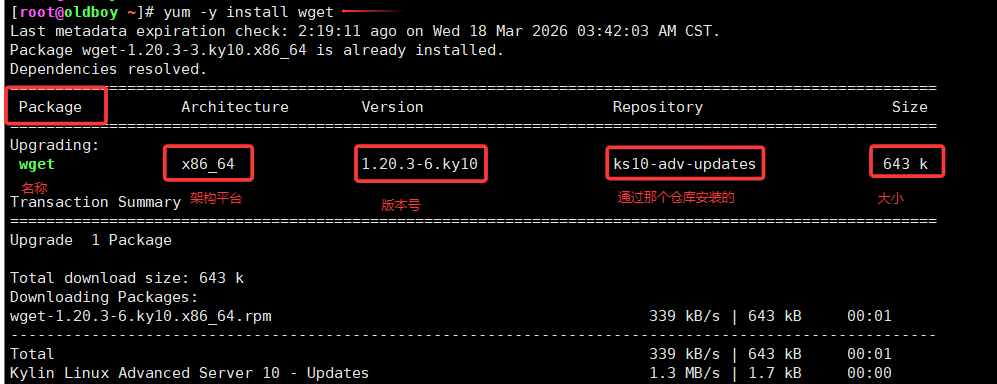
案例1:安装wget命令
 yum -y install wget
 #wget包已经安装
 Package wget-1.20.3-3.ky10.x86_64 is already installed.
单词: package包 version版本 repository仓库  size大小 Total总  download下载 check 检查
案例2:卸载wget命令
[root@oldboy ~]# yum -y remove wget
案例3:无法安装故障问题
1.网络没有连接错误
#临时删除网关
[root@oldboy ~]# ip route del 0/0 via 10.0.0.2
[root@oldboy ~]# route -n
Kernel IP routing table
Destination     Gateway         Genmask         Flags Metric Ref    Use Iface
10.0.0.0        0.0.0.0         255.255.255.0   U     100    0        0 ens33
#安装软件
[root@oldboy ~]# yum -y install wget
Error: Error downloading packages:
  wget-1.20.3-6.ky10.x86_64: Cannot download, all mirrors were already tried without success

#重启网卡恢复网络
[root@oldboy ~]# systemctl restart network

#DNS报错
[root@oldboy ~]# yum -y install wget
Kylin Linux Advanced Server 10 - Os                                             0.0  B/s |   0  B     00:00
Errors during downloading metadata for repository 'ks10-adv-os':
  - Curl error (6): Couldn't resolve host name for https://update.cs2c.com.cn/NS/V10/V10SP3/os/adv/lic/base/x86_64/repodata/repomd.xml [Could not resolve host: update.cs2c.com.cn]
Error: Failed to download metadata for repo 'ks10-adv-os': Cannot download repomd.xml: Cannot download repodata/repomd.xml: All mirrors were tried

2.命令错误、软件的名称错误
yum -y install aget

3.安装的命令属于其他的包
#1.查找命令属于哪个包 百度一下你就知道属于哪个包输入Linux安装sz命令
#2.yum search sz
[root@oldboy ~]# yum -y install lrzsz
安装后可以用sz和rz命令和Windows进行交互

#将Windows的文件上传到Linux
鼠标选择文件-》拖拽到xshell窗口-》松手
rz直击回车会让我们手动选择上传的文件

#将Linux的文件下载到Windows
sz 文件名

4.安装netstat命令 属于net-tools #kylin默认已经安装、centos没有安装

5.安装cowsay命令,animalsay是属于cowsay软件包的命令
[root@oldboy ~]# yum -y install cowsay
[root@oldboy ~]# animalsay "呵呵"
 ____
< 呵呵 >
 ----
  \
   \
       ___
     {~._.~}
      ( Y )
     ()~*~()
     (_)-(_)
[root@oldboy ~]# animalsay "呵呵"
 ____
< 呵呵 >
 ----
                       \                    ^    /^
                        \                  / \  // \
                         \   |\___/|      /   \//  .\
                          \  /O  O  \__  /    //  | \ \           *----*
                            /     /  \/_/    //   |  \  \          \   |
                            @___@`    \/_   //    |   \   \         \/\ \
                           0/0/|       \/_ //     |    \    \         \  \
                       0/0/0/0/|        \///      |     \     \       |  |
                    0/0/0/0/0/_|_ /   (  //       |      \     _\     |  /
                 0/0/0/0/0/0/`/,_ _ _/  ) ; -.    |    _ _\.-~       /   /
                             ,-}        _      *-.|.-~-.           .~    ~
            \     \__/        `/\      /                 ~-. _ .-~      /
             \____(oo)           *.   }            {                   /
             (    (--)          .----~-.\        \-`                 .~
             //__\\  \__ Ack!   ///.----..<        \             _ -~
            //    \\               ///-._ _ _ _ _ _ _{^ - - - - ~
6.清理yum缓存
[root@oldboy ~]# yum clean all
03:总结
0.积极
1.特殊符号
只接收正确的
>
>>
只接收错误的
2>
2>>
同时接收正确和错误的到同一个文件
ech hehe >1.txt 2>1.txt
echo hehe >>1.txt 2>&1
echo heeh &>>1.txt

3.sort 排序
sort 1.txt
    -n  #数字正序进行排序
    -rn #数字的逆序进行排序
    -k  #指定列数 -k2对第2列进行排序
    -rnk2 #按照文件第二列数字的逆序进行排序
4.uniq 去重统计
sourt 1.txt|uniq -c

5.wc 统计行数
-l #统计行数
wc -l 1.txt
cat 1.txt|wc -l
6.du统计目录大小、文件大小
ll -h 文件大小
7diff
8.软件安装
yum -y install包名字
yum -y remove 包名字
yum list    #查看软件仓库中可用的软件
yum list|grep wget #查看仓库中(应用商店)是否有wget软件

---笔记
yum clean all #清理缓存
yum search  #查找命令属于哪个仓库
正文完