2026年4月16日
知识点回顾
rsync远程访问模式
上传push:rsync -avz /etc/passwd root@10.0.0.7:/root/
下载pull:rsync -avz root@10.0.0.7:/root/ .
rsync参数:
a
v   显示过程
z
--exclude=file  排查打包
--bwlimit=1m    限速
--delete    镜像同步

rsync守护进程模式:
1.安装服务
yum -y install rsync
2.配置服务
uid=rsync
gid=rsync
...
auth-user=rsync_backup
setcri-passwd=rs.rsync_passwd
...
[backup]
path = /backup

3.根据配置文件创建必要的信息
创建虚拟用户
创建密码文件并授权600
创建目录并修改属主属组
4.启动服务
systemctl start rsyncd

5.检查是否启动
netstat

验证测试
rsync -avz /etc/passwd rsync_backup@10.0.0.41::backup
rsyn -avz rsync_backup@10.0.0.41::backup/1.txt .

非交互密码

--password=file

export RSYNC_PASSWORD=密码

案例脚本
客户端需求
服务端需求
----------
rsync同步工具
01.NFS
网络文件系统
实现数据的一致性
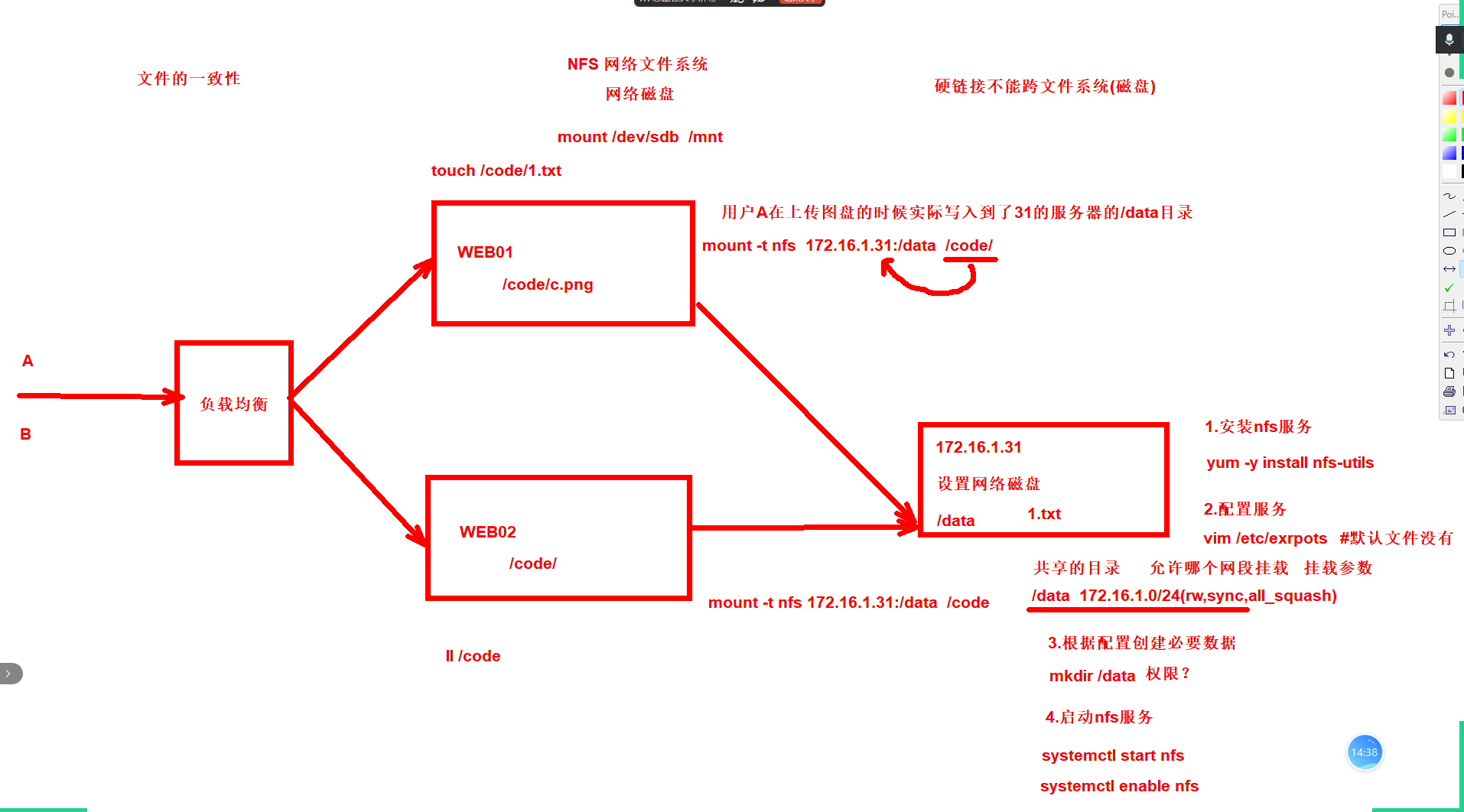
1.服务端配置-31-nfs
1.安装nfs服务
2.配置nfs服务
3.创建必要数据
4.启动nfs服务并加入开机自启
步骤1:安装nfs服务
[root@nfs ~]# yum -y install nfs-utils
步骤2:配置nfs服务
[root@nfs ~]# cat /etc/exports
/data 172.16.1.0/24(rw,sync,all_squash)

/data           #共享目录
172.16.1.0/24   #允许连接的网段
(rw)            #权限可读
(sync)          #同步写入,同时写入内存和磁盘
(all_squash)    #把所有客户端的任何用户(包括 root、普通用户),全部压缩成匿名用户(nfsnobody)
(anonuid)       #指定匿名用户 UID
(anongid)       #指定匿名用户 GID
步骤3:创建必要数据
[root@nfs ~]# mkdir /data
步骤4:启动nfs服务并加入开机自启
[root@nfs ~]# systemctl start nfs
[root@nfs ~]# systemctl enable nfs
步骤5:查看服务是否启动
[root@nfs ~]# netstat -tlnup
2.客户端使用-7-web01
1.安装nfs-utils   #centos、kylin默认有服务,目的不是启动服务,但是用里面的命令
2.查看nfs服务器共享的目录
3.挂载使用
4.创建文件 #权限拒绝不让写
5.查看nfs启动参数 #/var/lib/nfs/etab
6.所有的用户远程写入到nfs服务器上时用户被压缩成了65534的用户身份,修改/data属主属组为nobody
7.web01测试写入
8.最后写入开机自动挂载
步骤1:安装nfs-utils
yum -y install nfs-utils
步骤2:查看nfs服务器共享的目录
[root@web01 ~]# showmount -e 172.16.1.31
Export list for 172.16.1.31:
/data 172.16.1.0/24
步骤3:挂载使用
[root@web01 ~]# mkdir /code
[root@web01 ~]# mount -t nfs 172.16.1.31:/data /code
[root@web01 ~]# df -h|grep code
172.16.1.31:/data   48G  3.8G   44G    8% /code
步骤4:创建文件测试 权限拒绝不让写
[root@web01 ~]# touch /code/1.txt
touch: 无法创建 '/code/1.txt': 权限不够
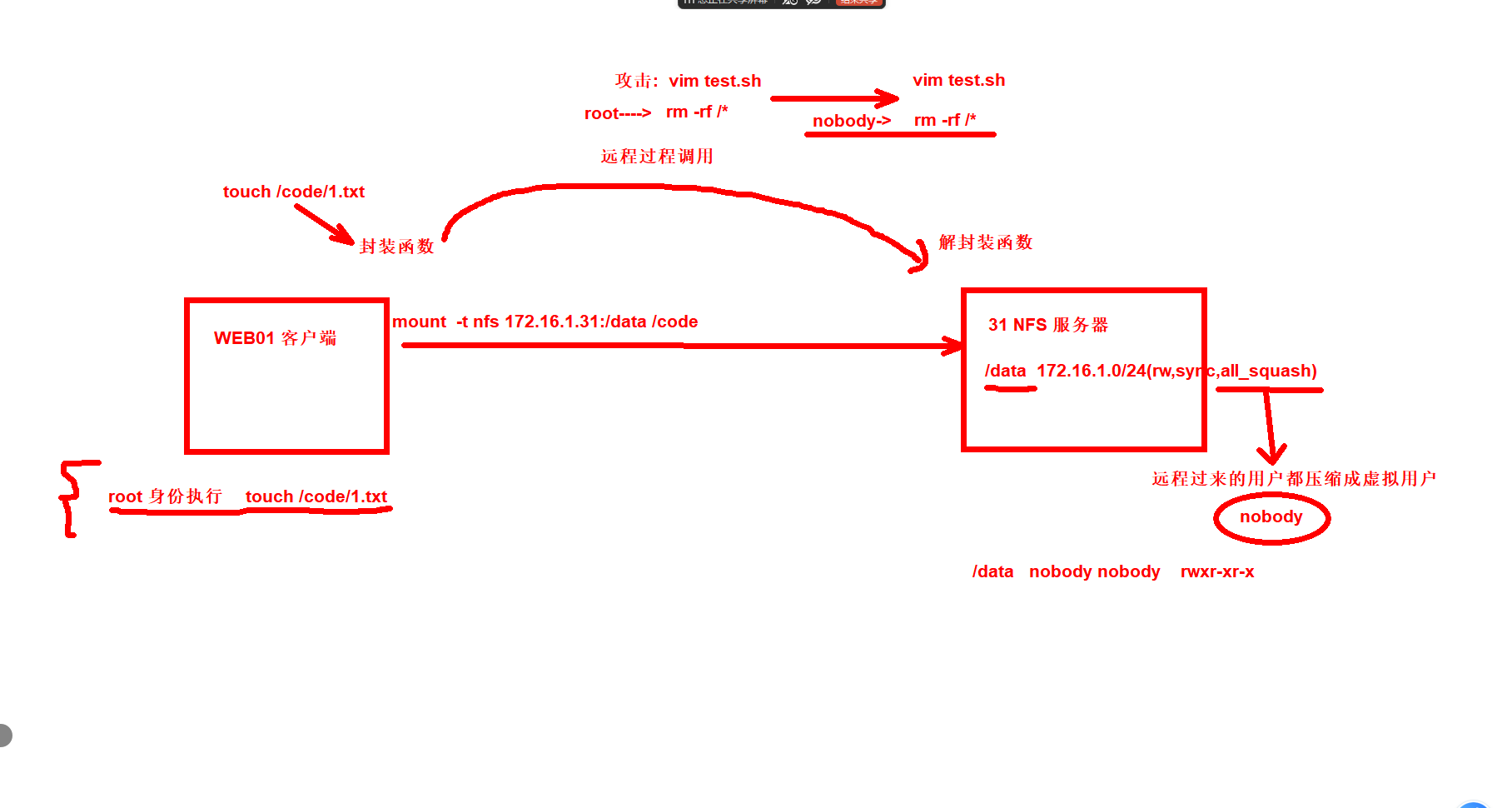
步骤5:查看启动参数-31-nfs
[root@nfs ~]# cat /var/lib/nfs/etab
/data   172.16.1.0/24(rw,sync,wdelay,hide,nocrossmnt,secure,root_squash,all_squash,no_subtree_check,secure_locks,acl,no_pnfs,anonuid=65534,anongid=65534,sec=sys,rw,secure,root_squash,all_squash)

[root@nfs ~]# grep 65534 /etc/passwd
nobody:x:65534:65534:Kernel Overflow User:/:/sbin/nologin

#注意:所有的用户远程写入到nfs服务器上时用户被压缩成了65534的用户身份
步骤6:修改/data属主属组为nobody
[root@nfs ~]# chown nobody.nobody /data
[root@nfs ~]# ll -d /data/
drwxr-xr-x 2 nobody nobody 6  4月 16 14:48 /data/
步骤7:web01测试写入
#web01
[root@web01 code]# touch 1.txt
[root@web01 code]# ll
总用量 0
-rw-r--r-- 1 nobody nobody 0  4月 16 15:08 1.txt

#nfs
[root@nfs ~]# ll /data/
总用量 0
-rw-r--r-- 1 nobody nobody 0  4月 16 15:08 1.txt
步骤8:最后写入开机自动挂载
[root@web01 code]# tail -1 /etc/fstab
172.16.1.31:/data /code nfs defaults 0 0
--
重启验证
[root@web01 code]# reboot

[root@web01 ~]# df -h|grep code
172.16.1.31:/data   48G  3.8G   44G    8% /code
3.问题 如果nfs服务器无法连接,客户端会夯住
#模拟服务器无法连接
1.停止31服务器上的ens36
[root@nfs ~]# ifdown ens36

2.在web服务器执行df -h
[root@web01 ~]# df -h

#解决方法
3.通过查看内存的挂载信息找到网络文件挂载信息
[root@web01 ~]# cat /proc/mounts
172.16.1.31:/data /code nfs4 rw,relatime,vers=4.2,rsize=131072,wsize=131072,namlen=255,hard,proto=tcp,timeo=600,retrans=2,sec=sys,clientaddr=172.16.1.7,local_lock=none,addr=172.16.1.31 0 0
tmpfs /run/user/0 tmpfs rw,nosuid,nodev,relatime,size=95452k,mode=700 0 0

4.强制卸载
[root@web01 ~]# umount -f /code
[root@web01 ~]# df -h
文件系统        容量  已用  可用 已用% 挂载点
devtmpfs        451M     0  451M    0% /dev
tmpfs           467M     0  467M    0% /dev/shm
tmpfs           467M  6.7M  460M    2% /run
tmpfs           467M     0  467M    0% /sys/fs/cgroup
/dev/sda3        48G  3.8G   45G    8% /
/dev/sda1       195M  139M   56M   72% /boot
tmpfs            94M     0   94M    0% /run/user/0

5.恢复nfs服务客户端重新挂载
[root@nfs ~]# ifup ens36
[root@web01 ~]# mount -t nfs 172.16.1.31:/data /code
[root@web01 ~]# df -h|grep code
172.16.1.31:/data   48G  3.8G   44G    8% /code
4.案例:web01可读可写、web02只读
1.web01可以读写远程挂载到/data/test01
2.web02只读远程挂载到/data/test02

准备工作:
1)准备一台web01,web02挂载网络文件系统 #web01前面案例已经准备,再准备一个web02
2)服务端配置
3)客户端配置
步骤1:准备一台web02挂载网络文件系统
1.安装nfs-utils #只安装不启动 用里面的命令
yum -y install nfs-utils

2.查看
[root@web02 ~]# showmount -e 172.16.1.31
Export list for 172.16.1.31:
/data 172.16.1.0/24

3.挂载使用
[root@web02 ~]# mkdir /code
[root@web02 ~]# mount -t nfs 172.16.1.31:/data /code
[root@web02 ~]# df -h|grep code
172.16.1.31:/data   48G  3.8G   44G    8% /code
[root@web02 ~]# touch /code/1.txt
[root@web02 ~]# ll /code
总用量 0
-rw-r--r-- 1 nobody nobody 0  4月 16 15:28 1.txt
步骤2:服务端配置
#1)修改配置
[root@nfs ~]# cat /etc/exports
/data/test01 172.16.1.0/24(rw,sync,all_squash)
/data/test02 172.16.1.0/24(ro,sync,all_squash)
#2)创建目录
[root@nfs ~]# mkdir /data/test01 /data/test02
[root@nfs ~]# ll /data/
总用量 0
drwxr-xr-x 2 root root 6  4月 16 15:53 test01
drwxr-xr-x 2 root root 6  4月 16 15:53 test02
#3)重启服务
[root@nfs ~]# systemctl restart nf

#4)修改属主属组
chown nobody.nobody
[root@nfs ~]# chown nobody.nobody /data/{test01,test02}
[root@nfs ~]# ll -d /data/{test01,test02}
drwxr-xr-x 2 nobody nobody 6  4月 16 15:53 /data/test01
drwxr-xr-x 2 nobody nobody 6  4月 16 15:53 /data/test02
步骤3:客户端挂载使用
1)web01
#查看可挂载目录
[root@web01 ~]# showmount -e 172.16.1.31
Export list for 172.16.1.31:
/data/test02 172.16.1.0/24
/data/test01 172.16.1.0/24
#挂载
[root@web01 ~]# mount -t nfs 172.16.1.31:/data/test01 /code
[root@web01 ~]# df -h|grep code
172.16.1.31:/data/test01   48G  3.8G   44G    8% /code
#使用
[root@web01 ~]# touch /code/1.txt
[root@web01 ~]# ll /code/
总用量 0
-rw-r--r-- 1 nobody nobody 0  4月 16 16:02 1.txt

2)web02
#查
[root@web02 ~]# showmount -e 172.16.1.31
Export list for 172.16.1.31:
/data/test02 172.16.1.0/24
/data/test01 172.16.1.0/24
#挂载错误案例,挂载同一个目录需要取消原有的挂载,不然无法挂载上
[root@web02 ~]# mount -t nfs 172.16.1.31:/data/test02 /code
[root@web02 ~]# df -h|grep code
172.16.1.31:/data   48G  3.8G   44G    8% /code

#先卸载后再挂载
[root@web02 ~]# umount /code
[root@web02 ~]# mount -t nfs 172.16.1.31:/data/test02 /code
[root@web02 ~]# df -h|grep code
172.16.1.31:/data/test02   48G  3.8G   44G    8% /code

#测试
[root@web02 ~]# touch /code/2.txt
touch: 无法创建 '/code/2.txt': 只读文件系统
5.案例指定uid,gid
#指定uid和gid,默认65534的nobody用户

1)指定为uid和gid为666的www用户
#先创建
[root@nfs ~]# groupadd -g666 www
[root@nfs ~]# useradd -u666 -g666 -M -s /sbin/nologin www
[root@nfs ~]# id www
用户id=666(www) 组id=666(www) 组=666(www)
#修改配置文件指定uid gid
[root@nfs ~]# cat /etc/exports
/data/test01 172.16.1.0/24(rw,sync,all_squash,anonuid=666,anongid=666)
/data/test02 172.16.1.0/24(ro,sync,all_squash,anonuid=666,anongid=666)
#重启服务生效
[root@nfs ~]# systemctl restart nfs
Job for nfs-server.service canceled. #报错原因没有创建共享目录

[root@nfs ~]# mkdir /data/{test01,test02}
[root@nfs ~]# ll /data/
总用量 0
drwxr-xr-x 2 root   root   6  4月 16 15:36 test01
drwxr-xr-x 2 root   root   6  4月 16 15:36 test02

再次启动服务
[root@nfs ~]# systemctl restart nfs

2)修改目录属主属组为www
[root@nfs ~]# chown -R www.www /data/
[root@nfs ~]# ll /data/
总用量 0
-rw-r--r-- 1 www www 0  4月 16 15:28 1.txt
drwxr-xr-x 2 www www 6  4月 16 15:36 test01
drwxr-xr-x 2 www www 6  4月 16 15:36 test02

3)测试验证
web01:
[root@web01 ~]# touch /code/3.txt
[root@web01 ~]# ll /code/
总用量 0
-rw-r--r-- 1 666 666 0  4月 16 16:02 1.txt
-rw-r--r-- 1 666 666 0  4月 16 16:17 3.txt

web02:
[root@web02 ~]# touch /code/3.txt
touch: 无法创建 '/code/3.txt': 只读文件系统
02.lsync
工具作用:
    1.实时监控目录变化 notify 增删查改
    2.监控到增删查改立刻出发rsync --delete命令进行推送
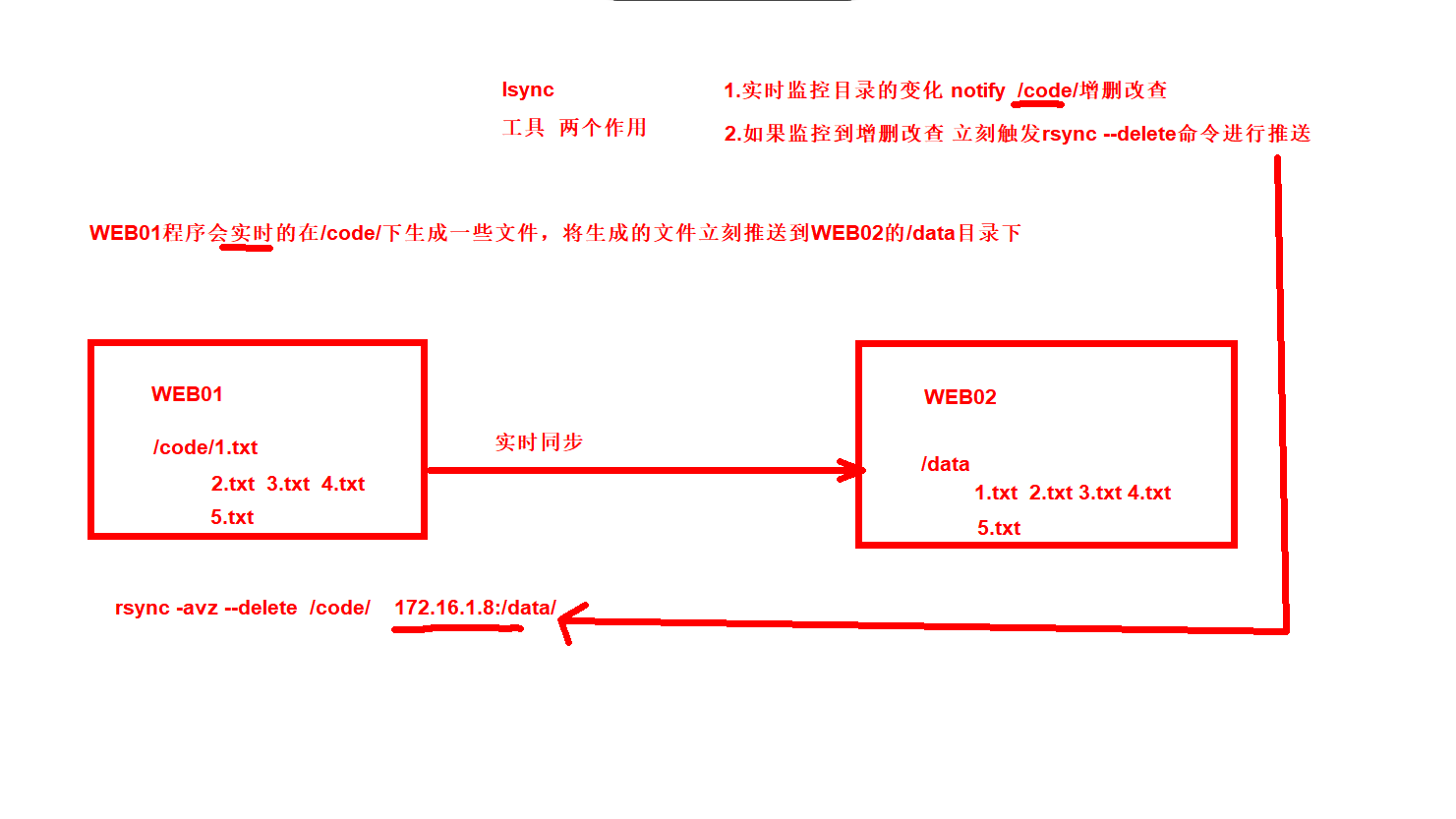
1.lsync服务搭建
前提:同步端已经搭建好rsync守护进程模式
1.安装lsync
2.配置lsync
3.根据配置创建必要数据
4.启动lsync
5.测试
步骤1:安装lsync
[root@web01 ~]# yum -y install lsyncd
步骤2:配置lsync
[root@nfs ~]# cat /etc/lsyncd.conf
settings {
    logfile = "/var/log/lsyncd/lsyncd.log",
    statusFile = "/var/log/lsyncd/lsyncd.status",
    maxProcesses = 2,
    nodaemon = false,
}
sync {
    default.rsync,
    source = "/code/",
    target = "rsync_backup@10.0.0.8::backup",
    delete = true,
    delay = 1,
    rsync = {
        binary = "/usr/bin/rsync",
        password_file = "/etc/rsyncd.pwd",
        archive = true,
        compress = true,
    }
}
步骤3:根据配置创建必要数据
1)创建推送目录
[root@web01 ~]# mkdir /code
2)创建验证密码文件
[root@web01 ~]# echo 123 > /etc/rsyncd.pwd
3)给密码文件600权限
[root@web01 ~]# chmod 600 /etc/rsyncd.pwd
[root@web01 ~]# ll /etc/rsyncd.pwd
-rw------- 1 root root 4  4月 16 16:31 /etc/rsyncd.pwd
步骤4:启动lsync
[root@web01 ~]# systemctl start  lsyncd.service
[root@web01 ~]# systemctl enable  lsyncd.service
步骤5:验证测试
1.web01 /code写入内容
[root@web01 ~]# touch /code/1.txt

2.web02 /backup目录查看
[root@web02 ~]# ll /backup/
总用量 0
-rw-r--r-- 1 rsync rsync 0  4月 16 17:22 1.txt
2.lsync案例
统一用户uid gid666 www
1.web01 web02 连接nfs
2.nfs实时同步文件到backup服务器
3.backup部署nfs服务
4.脚本判断nfs挂了自动挂载到backup-nfs上
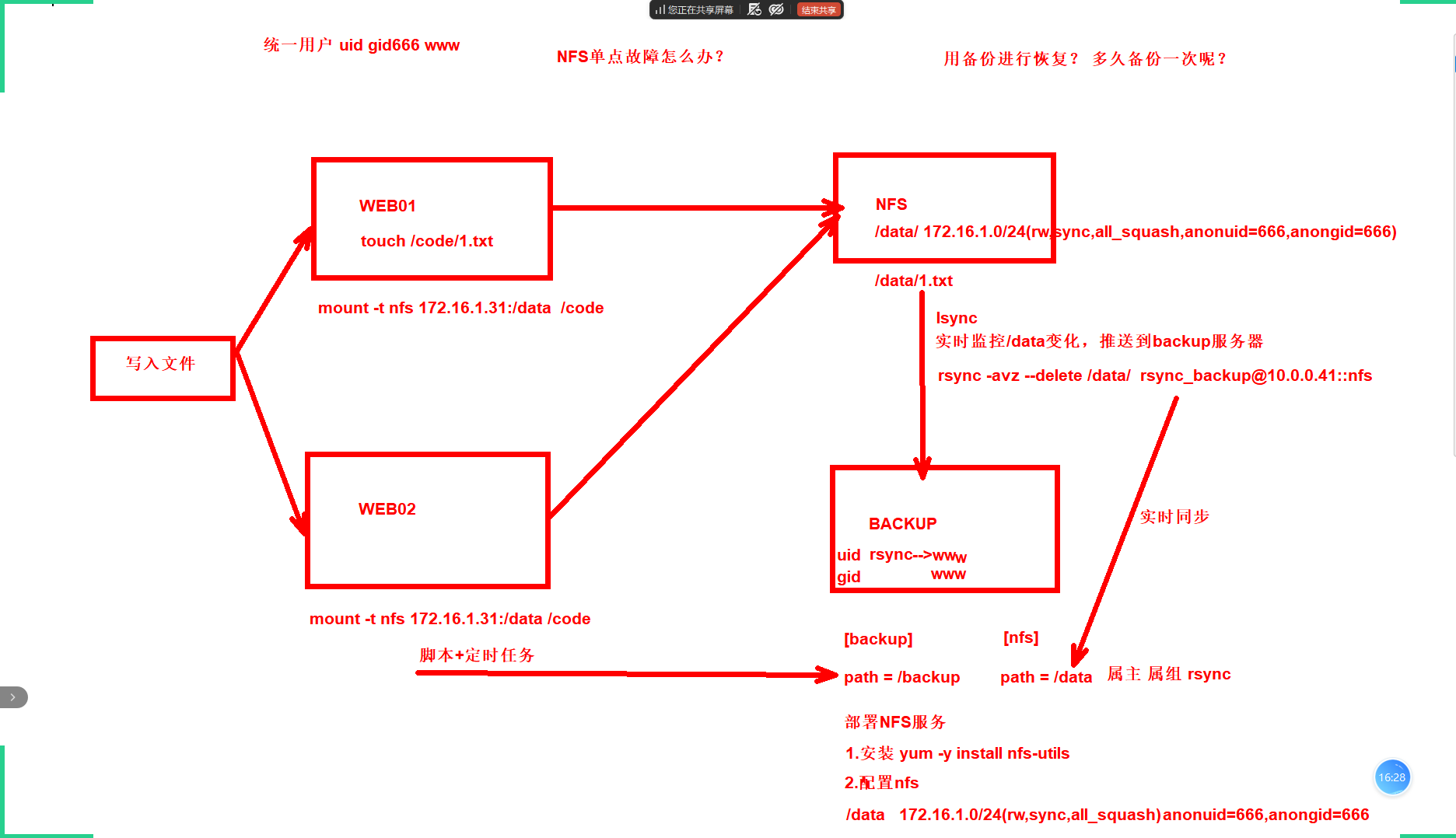
步骤1:41修改rsync服务端
1)修改启动身份www
#创建用户
[root@backup ~]# groupadd -g666 www
[root@backup ~]# useradd -u666 -g666 -M -s /sbin/nologin www
[root@backup ~]# id www
用户id=666(www) 组id=666(www) 组=666(www)
#修改配置
[root@backup ~]# cat /etc/rsyncd.conf
uid = www
gid = www
port = 873
fake super = yes
use chroot = no
max connections = 200
timeout = 600
ignore errors
read only = false
list = false
auth users = rsync_backup
secrets file = /etc/rsync.passwd
log file = /var/log/rsyncd.log
#####################################
[backup]
path = /backup

[nfs]
path = /data

2)修改属主属组
[root@backup ~]# mkdir /data
[root@backup ~]# chown www.www /data/
[root@backup ~]# ll -d /data/
drwxr-xr-x 2 www www 6  4月 16 19:16 /data/

3)重启生效
[root@backup ~]# systemctl start rsyncd
步骤2:部署lsync服务NFS
NFS配置
[root@nfs ~]# cat /etc/exports
/data/ 172.16.1.0/24(rw,sync,all_squash,anonuid=666,anongid=666)
[root@nfs ~]# ll -d /data/
drwxr-xr-x 4 www www 34  4月 16 15:53 /data/
[root@nfs ~]# systemctl restart nfs
----------------------------------------
1)安装服务
[root@nfs ~]# yum -y install lsyncd

2)配置服务
[root@nfs ~]# cat /etc/lsyncd.conf
settings {
    logfile = "/var/log/lsyncd/lsyncd.log",
    statusFile = "/var/log/lsyncd/lsyncd.status",
    maxProcesses = 2,
    nodaemon = false,
}
sync {
    default.rsync,
    source = "/data/",
    target = "rsync_backup@10.0.0.41::nfs",
    delete = true,
    delay = 1,
    rsync = {
        binary = "/usr/bin/rsync",
        password_file = "/etc/rsyncd.pwd",
        archive = true,
        compress = true,
    }
}

3)创建必要数据
[root@nfs ~]# echo 123 > /etc/rsyncd.pwd
[root@nfs ~]# chmod 600 /etc/rsyncd.pwd

4)启动并加入开机自启
[root@nfs ~]# systemctl start lsyncd
[root@nfs ~]# systemctl enable lsyncd
步骤3:web服务器挂载测试
1)挂载
#web01
[root@web01 ~]# mount -t nfs 172.16.1.31:/data /code
[root@web01 ~]# df -h|grep code
172.16.1.31:/data   48G  3.8G   45G    8% /code

#web02
[root@web02 ~]# mount -t nfs 172.16.1.31:/data /code/
[root@web02 ~]# df -h | grep code
172.16.1.31:/data   48G  3.8G   45G    8% /code
2)测试
[root@web01 ~]# touch /code/web01.txt #在web02 nfs backup上都可以看到web01.txt
#web02
[root@web02 ~]# ll /code/
总用量 0
-rw-r--r-- 1 666 666 0  4月 16 19:24 web01.txt
#nfs
[root@nfs ~]# ll /data/
总用量 0
-rw-r--r-- 1 www www 0  4月 16 19:24 web01.txt
#backup
[root@backup ~]# ll /data/
总用量 0
-rw-r--r-- 1 www www 0  4月 16 19:24 web01.txt
步骤4:模拟NFS服务挂掉
1)nfs模拟挂掉
[root@nfs ~]# ifdown ens36

2)在backup服务器上部署nfs
#安装服务
[root@backup ~]# yum -y isntall nfs-utils
#修改配置文件
[root@backup ~]# cat /etc/exports
/data 172.16.1.0/24(rw,sync,all_squash,anonuid=666,anongid=666)
#启用并开机自启
[root@backup ~]# systemctl start nfs
[root@backup ~]# systemctl enable nfs

3)在两台web卸载31的nfs,挂载到41服务器上
#web01
[root@web01 ~]# umount -f /code     #强制卸载
[root@web01 ~]# mount -t nfs 172.16.1.41:/data /code/   #挂载41nfs
[root@web01 ~]# df -h|grep code
172.16.1.41:/data   48G  3.9G   44G    8% /code

#web02
[root@web02 ~]# umount -f /code
[root@web02 ~]# mount -t nfs 172.16.1.41:/data /code
[root@web02 ~]# df -h|grep code
172.16.1.41:/data   48G  3.9G   44G    8% /code

4)查看验证
#web01
[root@web01 ~]# ll /code/
总用量 0
-rw-r--r-- 1 666 666 0  4月 16 19:24 web01.txt
-rw-r--r-- 1 666 666 0  4月 16 19:25 web02.txt
#web02
[root@web02 ~]# ll /code/
总用量 0
-rw-r--r-- 1 666 666 0  4月 16 19:24 web01.txt
-rw-r--r-- 1 666 666 0  4月 16 19:25 web02.txt
步骤5:在web01和web02写脚本自动探测修复挂载
#WEB01和web02写一个脚本探测31服务器是否还能够挂载,如果不能挂载了,先卸载,然后挂载到bakcup41服务器上。
1)写脚本
[root@web01 ~]# cat mount.sh
ping -c1 -W3 172.16.1.31||(umount -f /code;mount -t nfs 172.16.1.41:/data /code)
ping -c1 -W3 172.16.1.41||(umount -f /code;mount -t nfs 172.16.1.31:/data /code)

2)写入定时任务
[root@web01 ~]# tail -1 /etc/crontab
* * * * * root sh /root/mount.sh &>/dev/null
重点:
NFS网络文件系统
1.yum -y install nfs-utils
2.配置
vim /etc/exports
/data 172.16.1.0/24(rw,sync,all_squash,anonuid=666,anongid=666)
3.创建必要数据
xxx
4.启动nfs
5.检查nfs配置
cat /var/lib/nfs/etab

lsync;nfs rsync
1.安装
yum -y install lsync
2.配置
vim /etc/lsyncd.conf
3.创建必要数据信息
4.启动
重复恢复快照重做 至少5遍。
正文完