2026年5月7日
知识点回顾
tomcat
1.tomcat介绍
Tomcat也是一个web服务,能够解析处理后端动态数据也能够处理HTML静态数据但没有Nginx效率高
Tomcat是java的一个web服务
java运行环境jvm jre jdk jdk包含jre jre包含jvm所以直接安装jdk

2.部署jdk安装Tomcat
上传jdkrpm包
rpm -ivh jdkxxx.rpm

上传Tomcat解压到自定义或usr/local
Tomcat类似解压即用的绿色软件

3.目录含义
bin #相关命令
lib #调用的包
conf #配置文件
workapp #默认站点目录
...

4.启动方式
bin
绝对路径
/tomcat/bin/start.sh
相对路径
./start.sh

systemctl #需要配置

5.管理自带的管理界面
需要定义角色以及给角色绑定用户
6.Tomcat 主配置,主要改<Host>相当于Nginx server区块

7.部署java war包项目zrlog
配置<Host>区块
上传代码
启动
hosts解析测试访问

8.单台80访问部署
关键点用Nginx做代理转发

9.集群部署
关键点用负载均衡做转发

10.挂载nfs
关键点找到图片在服务器的存放位置,挂载到nfs上

11.会话保持
关键点,让集群共用一个session库 放内存就用Redis ,放磁盘就用nfs,还可以用数据库三
01.动静分离实战
1.Nginx动静分离基本概述
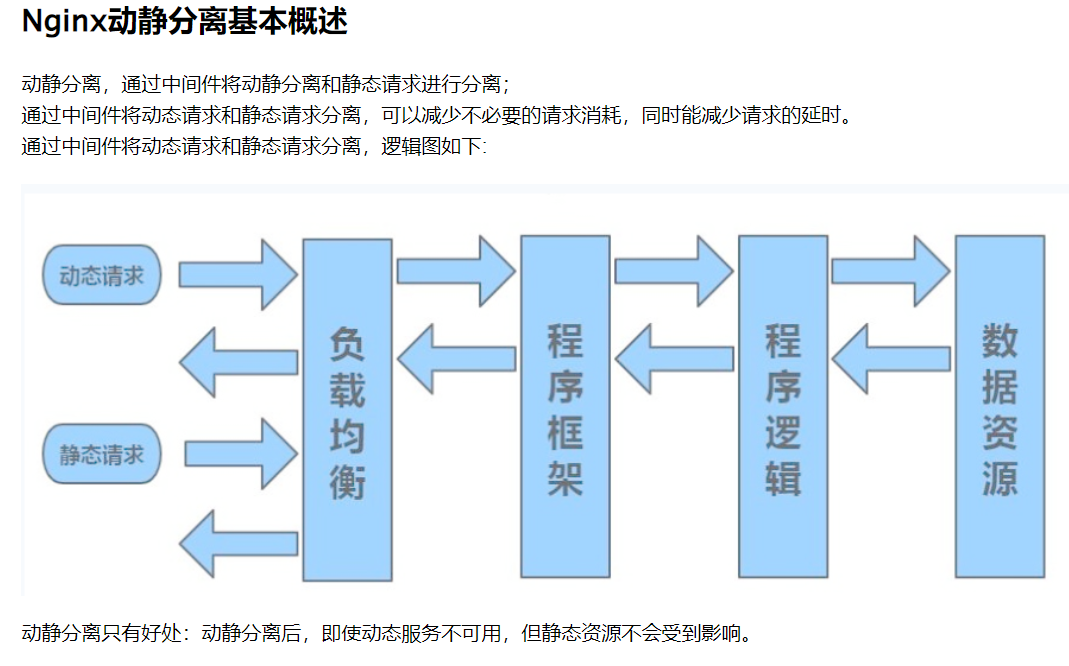
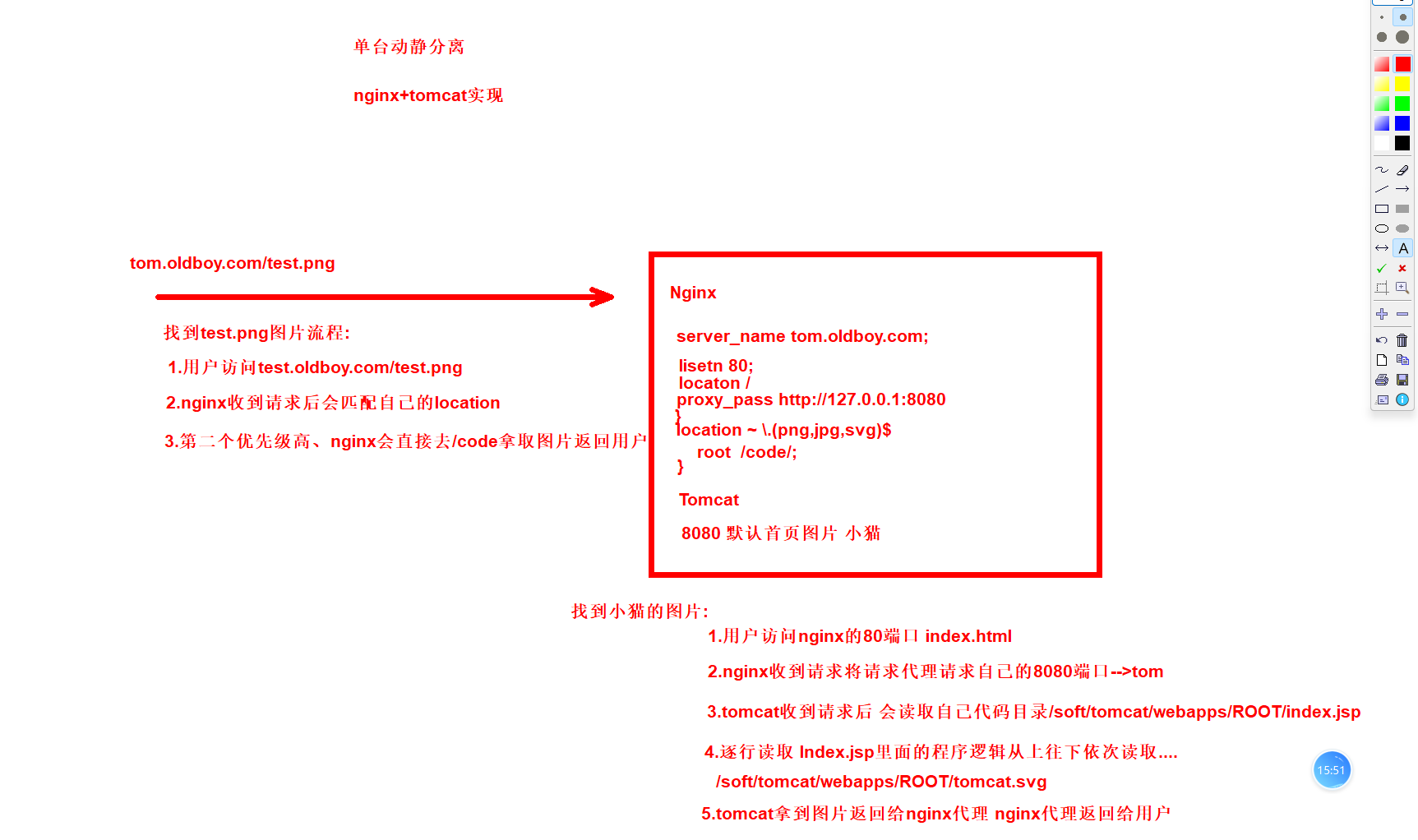
2.单台实现动静分离
1.web01配置Tomcat可以访问页面
2.web01 Nginx配置反向代理
3.Nginx配置动静分离
4.将Tomcat图片拷贝到/code/images
5.测试
2.1.web01配置Tomcat可以访问页面
http://10.0.0.7:8080/ #tomcat默认页面
2.2.web01 Nginx配置反向代理
1.配置server
[root@web01 conf.d]# cat tom.conf
server {
    listen 80;
    server_name tom.oldboy.com;

    location / {
        proxy_pass http://127.0.0.1:8080;
    }
}
[root@web01 conf.d]# nginx -t
nginx: the configuration file /etc/nginx/nginx.conf syntax is ok
nginx: configuration file /etc/nginx/nginx.conf test is successful
[root@web01 conf.d]# systemctl restart nginx

2.测试访问
10.0.0.7 tom.oldboy.com
2.3.Nginx配置动静分离
1.配置server
[root@web01 conf.d]# cat tom.conf
server {
    listen 80;
    server_name tom.oldboy.com;

    location / {
        proxy_pass http://127.0.0.1:8080;
    }

    location ~ \.(png|jpg|svg)$ {   #将静态图片匹配到/code/images
        root /code/images;
    }
}
[root@web01 conf.d]# nginx -t
nginx: the configuration file /etc/nginx/nginx.conf syntax is ok
nginx: configuration file /etc/nginx/nginx.conf test is successful
[root@web01 conf.d]# systemctl restart nginx

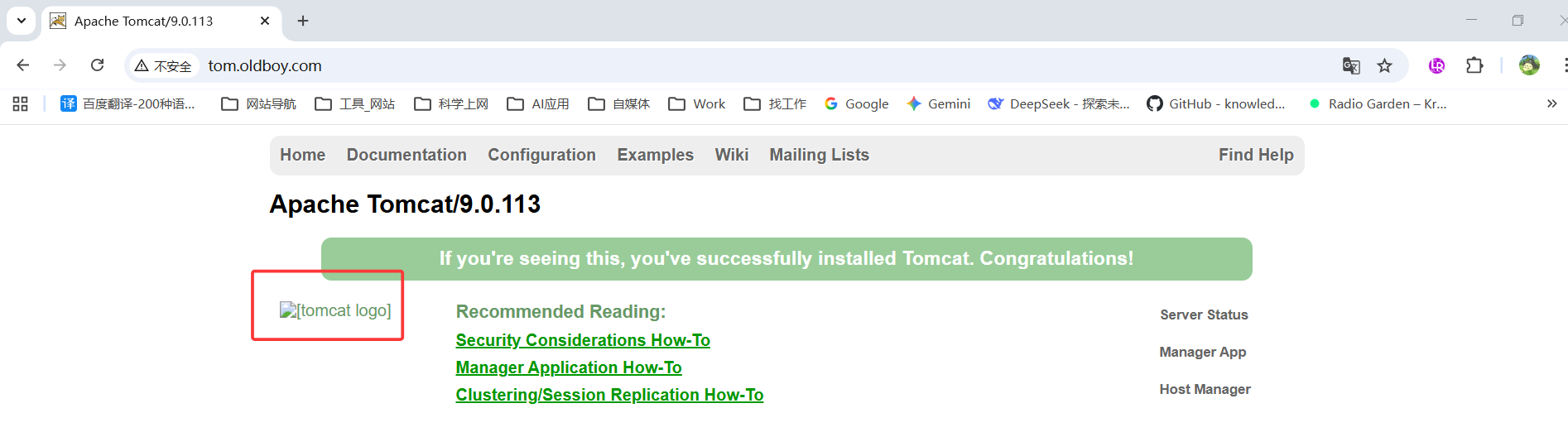
2.测试访问
测试访问看不到猫图片
 tom.oldboy.com
2.4.将Tomcat图片拷贝到/code/images
[root@web01 conf.d]# mkdir -p /code/images
[root@web01 conf.d]# cp /soft/tomcat/webapps/ROOT/*.png /code//images/
[root@web01 conf.d]# cp /soft/tomcat/webapps/ROOT/*.svg /code//images/
[root@web01 conf.d]# chmod -R o+r /code/images/
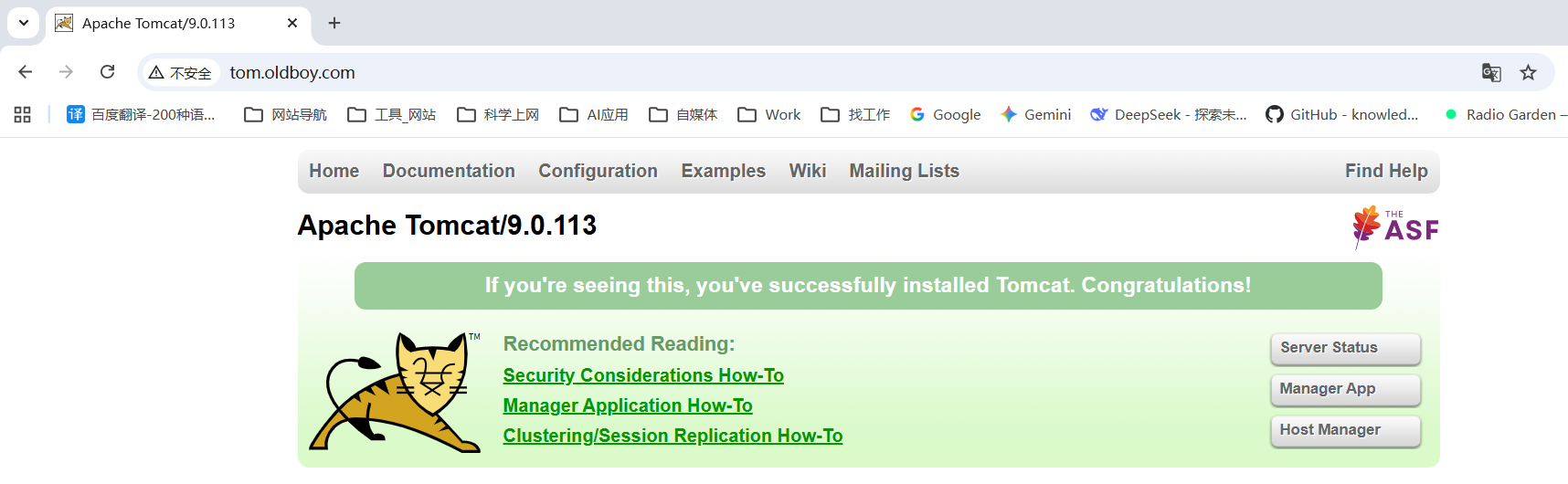
2.5.测试访问
http://tom.oldboy.com/
3.集群实现动静分离
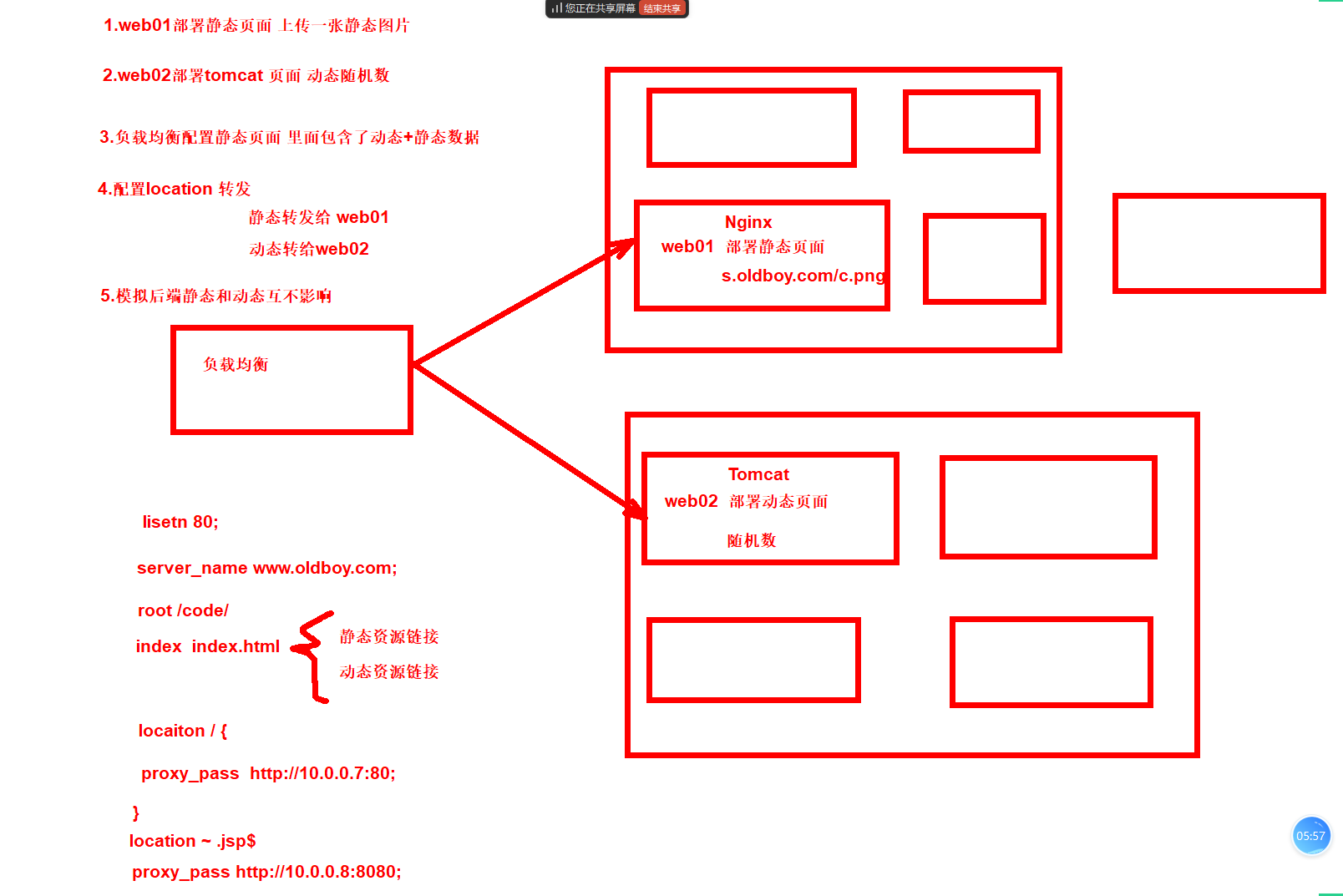
1.web01创建静态页面
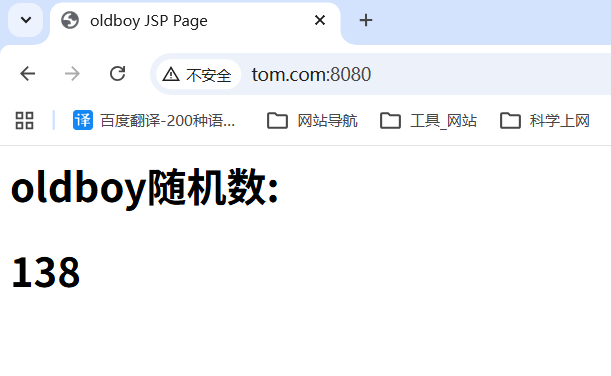
2.web02部署动态随机数页面
3.负载均衡集成后端的静态和动态资源
3.1.web01创建静态页面
1.配置server
[root@web01 conf.d]# cat s.conf
server {
    listen 80;
    server_name www.tom.com;

    location / {
        root /code;
        index index.html;
    }
}
[root@web01 conf.d]# nginx -t
nginx: the configuration file /etc/nginx/nginx.conf syntax is ok
nginx: configuration file /etc/nginx/nginx.conf test is successful
[root@web01 conf.d]# systemctl restart nginx

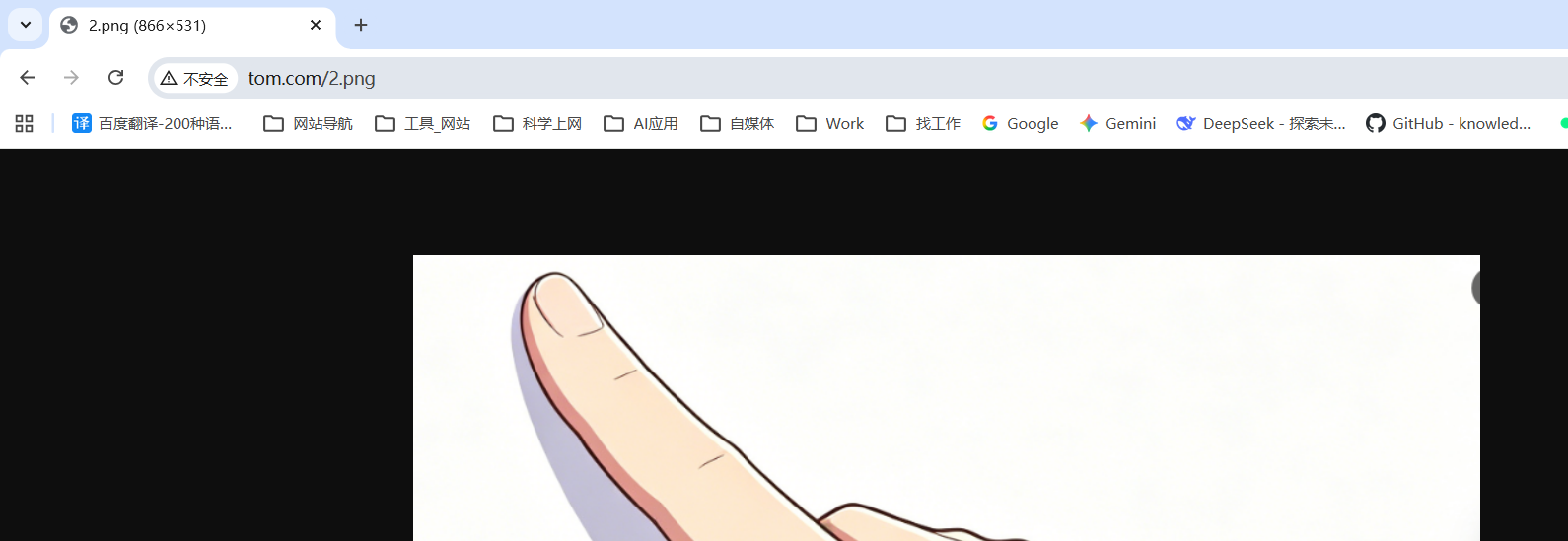
2.上传一张图片
[root@web01 conf.d]# ll
总用量 560
-rw-r--r-- 1 root root 540893  4月 29 15:26 2.png

3.hosts解析测试
10.0.0.7 www.tom.com
3.2.web02部署动态随机数页面
1.配置server
[root@web02 ~]# vim /soft/tomcat/conf/server.xml
...
<Host name="www.tom.com" appBase="/session/"
unpackWARs="true" autoDeploy="true">
<Valve className="org.apache.catalina.valves.AccessLogValve" directory="logs"
prefix="session" suffix=".log"
pattern="%h %l %u %t "%r" %s %b" />
</Host>
...
[root@web02 ~]# cd /session/ROOT/
2.配置动态随机数脚本
[root@web02 ROOT]# cat index.jsp # 原来的内容删除、粘贴下面的内容
<%@ page language="java" import="java.util.*" pageEncoding="utf-8"%>
<HTML>
<HEAD>
<TITLE>oldboy JSP Page</TITLE>
</HEAD>
<BODY>
<%
Random rand = new Random();
out.println("<h1>oldboy随机数:<h1>");
out.println(rand.nextInt(99)+100);
%>
</BODY>
</HTML>
[root@web02 ROOT]# systemctl restart tomcat
3.hosts解析测试
10.0.0.8 www.tom.com
3.3.负载均衡集成后端的静态和动态资源
1.修改Nginx配置文件
[root@lb01 conf.d]# cat tom.conf
upstream static {
    server 172.16.1.7:80;
}

upstream java {
    server 172.16.1.8:8080;
}

server {
    listen 80;
    server_name www.tom.com;
    root /code;
    index index.html;

    location ~* \.(jpg|png|gif)$ {
        proxy_pass http://static;
        proxy_set_header Host $http_host;
    }

    location ~ \.jsp {
        proxy_pass http://java;
        proxy_set_header Host $http_host;
    }

}
[root@lb01 conf.d]# nginx -t
nginx: the configuration file /etc/nginx/nginx.conf syntax is ok
nginx: configuration file /etc/nginx/nginx.conf test is successful
[root@lb01 conf.d]# systemctl restart nginx

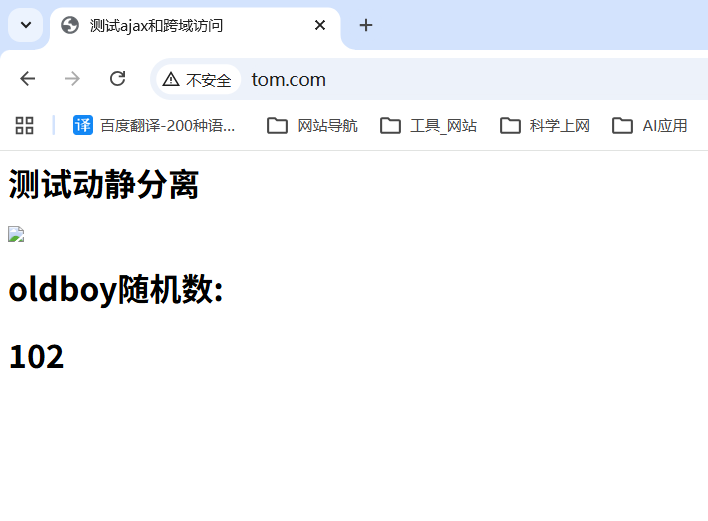
2.配置动静分离index页面
[root@lb01 conf.d]# cat /code/index.html
<html lang="en">
    <head>
        <meta charset="UTF-8" />
        <title>测试ajax和跨域访问</title>
        <script src="https://cdn.bootcdn.net/ajax/libs/jquery/3.6.0/jquery.min.js"></script>
    </head>
    <script type="text/javascript">
        $(document).ready(function(){
            $.ajax({
                type: "GET",
                url: "http://www.tom.com/index.jsp",
                success: function(data){
                    $("#get_data").html(data)
                },
                error: function() {
                    alert("哎呦喂,失败了,回去检查你服务去~");
                }
            });
        });
    </script>
    <body>
        <h1>测试动静分离</h1>
        <img src="http://www.tom.com/2.png">
        <div id="get_data"></div>
    </body>
</html>

3.解析测试访问
10.0.0.5 www.tom.com

3.4.测试停止web01 Nginx
1.停止
[root@web01 conf.d]# systemctl stop nginx

2.再次访问
www.tom.com
3.5.测试:启动Nginx停止web02的Tomcat
1.启动Nginx
[root@web01 conf.d]# systemctl start nginx

2.停止Tomcat
[root@web02 ROOT]# systemctl stop tomcat

3.再次测试访问
www.tom.com

4.PC端和移动端分离
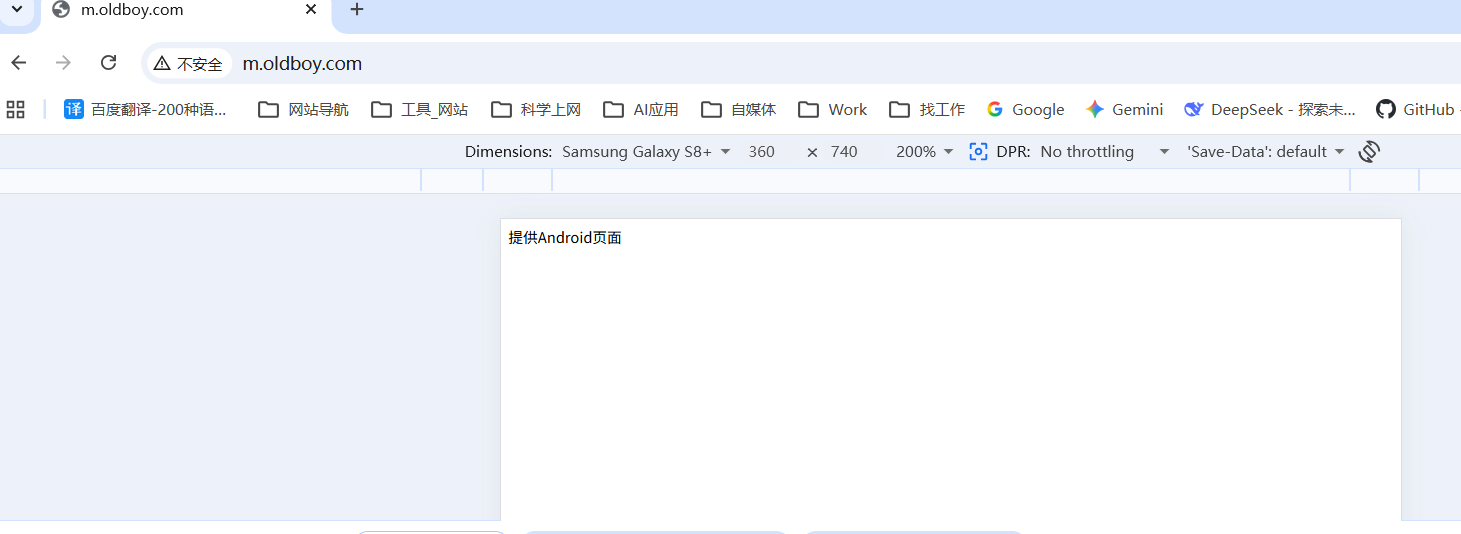
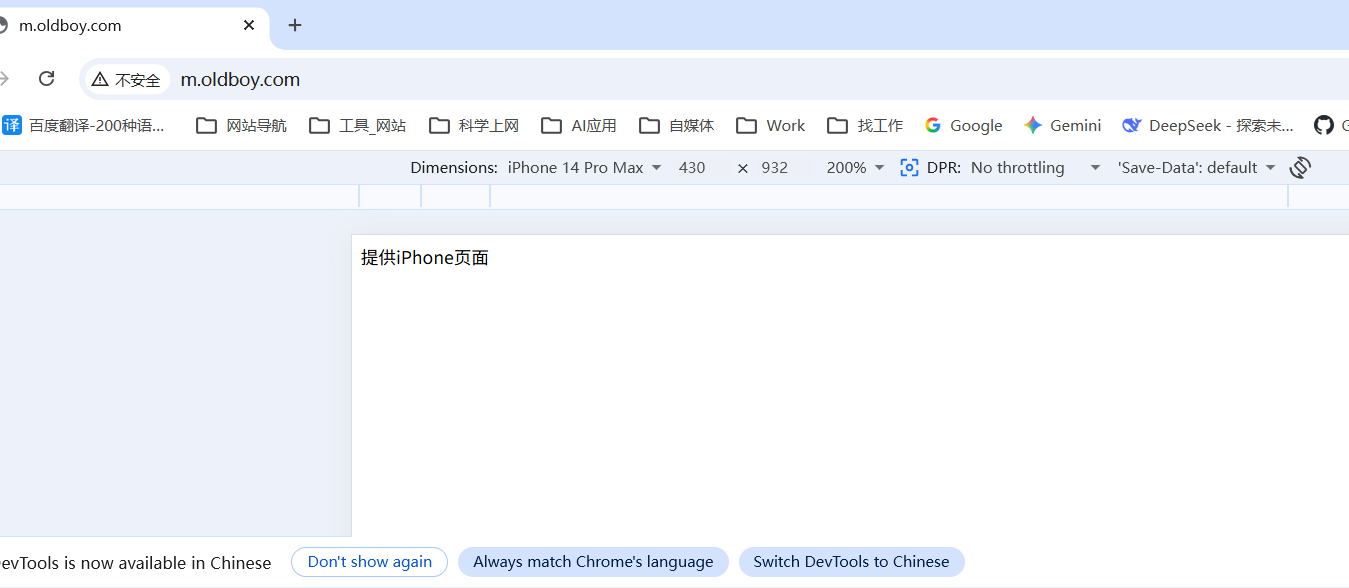
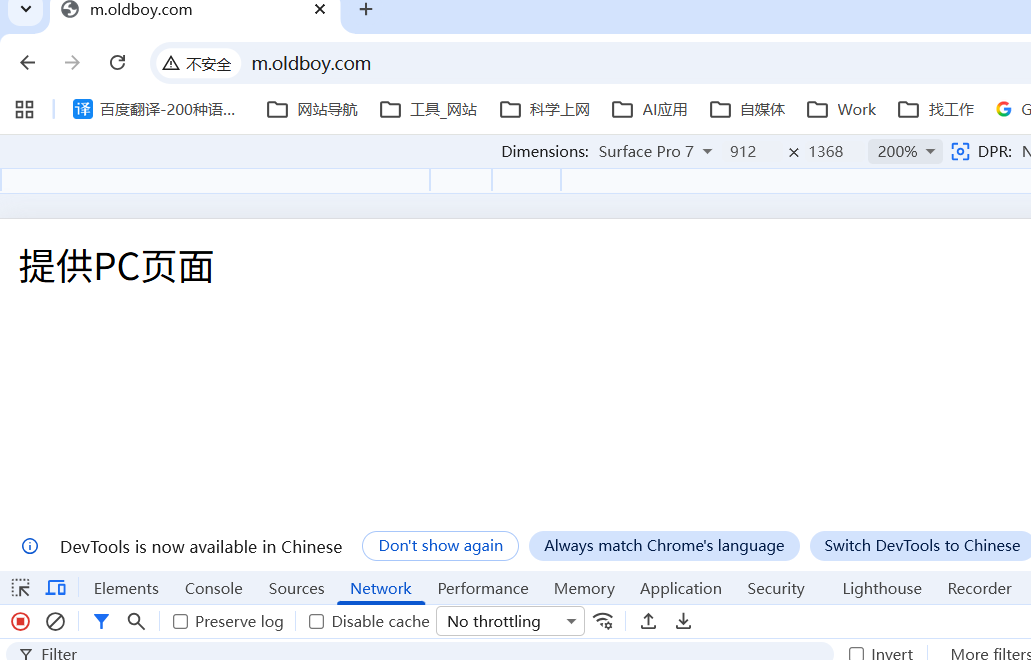
Nginx通过负载均衡实现手机与PC调度至不通的后端节点应用案例
| 系统版本 | 主机角色 | 外网IP | 内网IP | 提供端口 |
|---|---|---|---|---|
| kylin | 负载均衡 | 10.0.0.5 | 172.16.1.5 | 80 |
| kylin | 提供Android页面 | 172.16.1.7 | 9090 | |
| kylin | 提供IPhone页面 | 172.16.1.7 | 9091 | |
| kylin | 提供PC页面 | 172.16.1.7 | 9092 |
1.web1配置资源
2.负载均衡配置
4.1.web01配置资源
1.配置server
[root@web01 conf.d]# cat s.conf
server {
    listen 9090;
    server_name m.oldboy.com;

    location / {
        root /code/9090;
        index index.html;
    }
}

server {
        listen 9091;
        server_name m.oldboy.com;

        location / {
                root /code/9091;
                index index.html;
        }
}

server {
        listen 9092;
        server_name m.oldboy.com;

        location / {
                root /code/9092;
                index index.html;
        }
}

[root@web01 conf.d]# nginx -t
nginx: the configuration file /etc/nginx/nginx.conf syntax is ok
nginx: configuration file /etc/nginx/nginx.conf test is successful
[root@web01 conf.d]# systemctl restart nginx

2.配置index页面
[root@web01 conf.d]# mkdir /code/{9090,9091,9092}
[root@web01 conf.d]# mkdir /code/{9090,9091,9092}
[root@web01 conf.d]# echo '提供Android页面' > /code/9090/index.html
[root@web01 conf.d]# echo '提供iPhone页面' > /code/9091/index.html
[root@web01 conf.d]# echo '提供PC页面' > /code/9092/index.html

3.访问测试
10.0.0.7 m.oldboy.com



4.2.负载均衡配置
1.配置server
[root@lb01 conf.d]# cat m.conf
upstream android {
    server 172.16.1.7:9090;
}

upstream iphone {
    server 172.16.1.7:9091;
}

upstream pc {
    server 172.16.1.7:9092;
}

server {
    listen 80;
    server_name m.oldboy.com;
    charset 'utf-8';

    location / {
        #如果客户端来源是Android则跳转到Android的资源;
        if ($http_user_agent ~* "Android") {
            proxy_pass http://android;
        }

        #如果客户端来源是iPhone则跳转到iPhone的资源;
        if ($http_user_agent ~* "Iphone") {
            proxy_pass http://iphone;
        }

        #如果客户端是IE浏览器则返回403错误;
        if ($http_user_agent ~* "MSIE") {
            return 403;
        }

        #默认跳转pc资源;
        proxy_pass http://pc;
    }
}
[root@lb01 conf.d]# nginx -t
nginx: the configuration file /etc/nginx/nginx.conf syntax is ok
nginx: configuration file /etc/nginx/nginx.conf test is successful
[root@lb01 conf.d]# systemctl restart nginx

2.hosts解析测试
10.0.0.5 m.oldboy.com
Android
iPhone
PC
注意:除了UA可以做判断、其他所有的变量都可以用if判断
     if ($remote_addr  ~* 10.0.0.1 ) {
          proxy_pass http://www.baidu.com;
     }
02.java运行jar包
java代码编译后;
    war包:基于Tomcat运行
    jar包:部署运行环境JDK 命令行运行jar包 内嵌了轻量的Tomcat

案例:部署NginxwebUI #一个通过页面管理Nginx的项目
https://gitee.com/cym1102/nginxWebUI #项目地址
1.创建jar包目录
[root@web02 ~]# mkdir /home/nginxWebUI/

2.下载jar包
[root@web02 ~]# wget -O /home/nginxWebUI/nginxWebUI.jar https://gitee.com/cym1102/nginxWebUI/releases/download/4.3.8/nginxWebUI-4.3.8.jar
[root@web02 ~]# ll /home/nginxWebUI/
总用量 44104
-rw-r--r-- 1 root root 45158440  5月  7 16:41 nginxWebUI.jar

3.停掉Tomcat防止端口冲突
[root@web02 ~]# systemctl stop tomcat
[root@web02 ~]# ss -tnulp|grep 8080

4.运行jar包
[root@web02 ~]# nohup java -jar -Dfile.encoding=UTF-8 /home/nginxWebUI/nginxWebUI.jar --server.port=8080 --project.home=/home/nginxWebUI/ > /dev/null &

5.访问测试
10.0.0.8:8080

6.最后将启动方式写入脚本
#启动
[root@web02 ~]# cat start_nginx_ui.sh
nohup java -jar -Dfile.encoding=UTF-8 /home/nginxWebUI/nginxWebUI.jar --server.port=8080 --project.home=/home/nginxWebUI/ > /dev/null &

#停止
[root@web02 ~]# cat stop_web_ui.sh
ps axu|grep jar|grep -v grep|awk '{print $2}'|xargs kill -9

扩展:企业如果连接数据、需要添加数据库的启动参数
nohup java -jar -Dfile.encoding=UTF-8 /home/nginxWebUI/nginxWebUI.jar --server.port=8080 --project.home=/home/nginxWebUI/  --spring.datasource.url=172.16.1.51  --spring.datasource.username=root --spring.datasource.password=pass> /dev/null &
03.前后端分离实战-若依项目
公司正常流程:
1.拿到后端开发编译好的jar包、数据库配置文件、Redis配置文件
2.拿到前端开发编译好的dist站点目录
3.部署项目依赖的中间件数据库、Redis
4.改好相关配置,启动jar包 Java -jar jar包
5.配置Nginx server区块指定站点目录

本次练习流程:
增加开发的前后端编译 实际不归我们做,体验下开发的工作
准备工作:
web01:部署前端 #172.16.1.7
web02:部署后端 #172.16.1.8
db02:部署MySQL以及Redis #172.16.1.52
1.db02部署
2.web02部署
3.web01部署
4.配置Nginx
1.db02部署
1.下载项目 #用到数据xx.sql文件
2.安装数据库
3.安装Redis
1.1.下载项目
[root@db02 ~]# git clone https://gitee.com/y_project/RuoYi-Vue.git
[root@db02 ~]# cd RuoYi-Vue/
1.2.安装数据库
1.下载数据库
[root@db02 ~]# yum -y install mariadb-server

2.启动并开机自启
[root@db02 ~]# systemctl enable --now mariadb

3.初始化数据库
[root@db02 ~]# mysql_secure_installation

NOTE: RUNNING ALL PARTS OF THIS SCRIPT IS RECOMMENDED FOR ALL MariaDB
      SERVERS IN PRODUCTION USE!  PLEASE READ EACH STEP CAREFULLY!

In order to log into MariaDB to secure it, we'll need the current
password for the root user.  If you've just installed MariaDB, and
you haven't set the root password yet, the password will be blank,
so you should just press enter here.

Enter current password for root (enter for none):   #回车设置密码
OK, successfully used password, moving on...

Setting the root password ensures that nobody can log into the MariaDB
root user without the proper authorisation.

Set root password? [Y/n] Y      #设置root密码
New password:   #输入oldboy123.com
Re-enter new password:  #oldboy123.com
Password updated successfully!
Reloading privilege tables..
 ... Success!


By default, a MariaDB installation has an anonymous user, allowing anyone
to log into MariaDB without having to have a user account created for
them.  This is intended only for testing, and to make the installation
go a bit smoother.  You should remove them before moving into a
production environment.

Remove anonymous users? [Y/n] Y     #移除匿名用户
 ... Success!

Normally, root should only be allowed to connect from 'localhost'.  This
ensures that someone cannot guess at the root password from the network.

Disallow root login remotely? [Y/n] Y   #禁止远程root登录
 ... Success!

By default, MariaDB comes with a database named 'test' that anyone can
access.  This is also intended only for testing, and should be removed
before moving into a production environment.

Remove test database and access to it? [Y/n] Y      #删除测试数据库并禁止访问
 - Dropping test database...
 ... Success!
 - Removing privileges on test database...
 ... Success!

Reloading the privilege tables will ensure that all changes made so far
will take effect immediately.

Reload privilege tables now? [Y/n] Y    #重新加载表权限
 ... Success!

Cleaning up...

All done!  If you've completed all of the above steps, your MariaDB
installation should now be secure.

Thanks for using MariaDB!

4.建库建用户
[root@db02 ~]# mysql -uroot -poldboy123.com
Welcome to the MariaDB monitor.  Commands end with ; or \g.
Your MariaDB connection id is 16
Server version: 10.3.39-MariaDB MariaDB Server

Copyright (c) 2000, 2018, Oracle, MariaDB Corporation Ab and others.

Type 'help;' or '\h' for help. Type '\c' to clear the current input statement.
#创建数据库
MariaDB [(none)]> create database ruoyi charset utf8mb4;
Query OK, 1 row affected (0.000 sec)
#创建远程登录用户
MariaDB [(none)]> grant all on  ruoyi.* to  'ruoyi'@'locallhost'  identified by 'oldboy';
Query OK, 0 rows affected (0.000 sec)
#指定访问段
MariaDB [(none)]> grant all on  ruoyi.* to  'ruoyi'@'172.16.1.%'  identified by 'oldboy';
Query OK, 0 rows affected (0.000 sec)
#检查
MariaDB [(none)]> select user,host from mysql.user;
+-------+------------+
| user  | host       |
+-------+------------+
| root  | 127.0.0.1  |
| ruoyi | 172.16.1.% |
| root  | ::1        |
| root  | localhost  |
| ruoyi | locallhost |
+-------+------------+
5 rows in set (0.000 sec)

5.导入建表语句
注意:建表语句开头加入 set names utf8mb4; 指定 字符集避免中文乱码。
[root@db02 RuoYi-Vue]# pwd
/root/RuoYi-Vue
[root@db02 RuoYi-Vue]# head -1 sql/ry_20260417.sql
set names  utf8mb4;

#导入SQL建表语句
[root@db02 RuoYi-Vue]# mysql -uroot -p'oldboy123.com' ruoyi < sql/ry_20260417.sql

#检查结果
[root@db02 RuoYi-Vue]# mysql -uroot -p'oldboy123.com' -e 'show databases;'
+--------------------+
| Database           |
+--------------------+
| information_schema |
| mysql              |
| performance_schema |
| ruoyi              |
+--------------------+
[root@db02 RuoYi-Vue]# mysql -uroot -p'oldboy123.com' -e 'show tables from ruoyi;'
+------------------+
| Tables_in_ruoyi  |
+------------------+
| gen_table        |
| gen_table_column |
| sys_config       |
| sys_dept         |
| sys_dict_data    |
| sys_dict_type    |
| sys_job          |
| sys_job_log      |
| sys_logininfor   |
| sys_menu         |
| sys_notice       |
| sys_notice_read  |
| sys_oper_log     |
| sys_post         |
| sys_role         |
| sys_role_dept    |
| sys_role_menu    |
| sys_user         |
| sys_user_post    |
| sys_user_role    |
+------------------+
1.3.Redis
1.安装Redis
[root@db02 RuoYi-Vue]# yum -y install redis

2.配置监听bind和密码
[root@db02 RuoYi-Vue]# grep -E '^bind|^requirepass' /etc/redis.conf
bind 127.0.0.1 -::1 172.16.1.52
requirepass 123456

3.启动服务
[root@db02 RuoYi-Vue]# systemctl enable --now redis

4.检查登录
[root@db02 RuoYi-Vue]# redis-cli -h 172.16.1.52 -a 123456
2.web02后端部署
2.1.安装maven
1.安装jdk #注意之前装的要卸载
[root@web02 ~]# rpm -qa|grep jdk|xargs yum -y remove #卸载之前的版本
#上传jdk对应版本安装
[root@web02 ~]# ll jdk-17.0.19_linux-x64_bin.rpm
-rw-r--r-- 1 root root 183819630  5月  6 16:02 jdk-17.0.19_linux-x64_bin.rpm
[root@web02 ~]# rpm -ivh jdk-17.0.19_linux-x64_bin.rpm

2.安装maven
[root@web02 ~]#  wget https://dlcdn.apache.org/maven/maven-3/3.9.15/binaries/apache-maven-3.9.15-bin.tar.gz

[root@web02 ~]# mkdir -p /app/tools  #创建存放目录
[root@web02 ~]# tar -xf apache-maven-3.9.15-bin.tar.gz -C /app/tools/
[root@web02 ~]# ln -s /app/tools/apache-maven-3.9.15/ /app/tools/maven
[root@web02 ~]# echo 'export PATH=/app/tools/maven/bin/:$PATH' >>/etc/profile
[root@web02 ~]# tail -1 /etc/profile
export PATH=/app/tools/maven/bin/:$PATH
[root@web02 ~]# source /etc/profile

3.配置maven加速
打开 Maven 的配置文件(windows机器一般在maven安装目录的conf/settings.xml),在<mirrors></mirrors>标签中添加 mirror 子节点:
<mirror>
    <id>aliyunmaven</id>
    <mirrorOf>*</mirrorOf>
    <name>阿里云公共仓库</name>
    <url>https://maven.aliyun.com/repository/public</url>
</mirror>

[root@web02 ~]# vim /app/tools/maven/conf/settings.xml
[root@web02 ~]# mvn --version
Apache Maven 3.9.15 (98b2cdbfdb5f1ac8781f537ea9acccaed7922349)
Maven home: /app/tools/maven
Java version: 17.0.19, vendor: Oracle Corporation, runtime: /usr/lib/jvm/jdk-17.0.19-oracle-x64
Default locale: zh_CN, platform encoding: UTF-8
OS name: "linux", version: "4.19.90-52.22.v2207.ky10.x86_64", arch: "amd64", family: "unix"
2.2.编译代码
1.下载项目
[root@web02 ~]# git clone https://gitee.com/y_project/RuoYi-Vue.git

2.编译
[root@web02 ~]# cd RuoYi-Vue/
[root@web02 RuoYi-Vue]# mvn clean package -DskipTests=true
[INFO] ------------------------------------------------------------------------
[INFO] Reactor Summary for ruoyi 3.9.2:
[INFO]
[INFO] ruoyi .............................................. SUCCESS [  1.882 s]
[INFO] ruoyi-common ....................................... SUCCESS [04:23 min]
[INFO] ruoyi-system ....................................... SUCCESS [  1.021 s]
[INFO] ruoyi-framework .................................... SUCCESS [ 53.476 s]
[INFO] ruoyi-quartz ....................................... SUCCESS [  2.829 s]
[INFO] ruoyi-generator .................................... SUCCESS [  2.497 s]
[INFO] ruoyi-admin ........................................ SUCCESS [ 49.655 s]
[INFO] ------------------------------------------------------------------------
[INFO] BUILD SUCCESS
[INFO] ------------------------------------------------------------------------
[INFO] Total time:  06:19 min
[INFO] Finished at: 2026-05-07T19:26:23+08:00
[INFO] -----------------------------------------------------------------------

3.检查结果
[root@web02 RuoYi-Vue]# ll ruoyi-admin/target/
总用量 87636
drwxr-xr-x 6 root root      149  5月  7 19:25 classes
drwxr-xr-x 3 root root       25  5月  7 19:25 generated-sources
drwxr-xr-x 2 root root       28  5月  7 19:25 maven-archiver
drwxr-xr-x 3 root root       35  5月  7 19:25 maven-status
-rw-r--r-- 1 root root 89668154  5月  7 19:26 ruoyi-admin.jar
-rw-r--r-- 1 root root    65701  5月  7 19:25 ruoyi-admin.jar.original

4.准备配置文件
[root@web02 RuoYi-Vue]# mkdir -p /app/code/ruoyi
[root@web02 RuoYi-Vue]# cp ruoyi-admin/target/ruoyi-admin.jar /app/code/ruoyi/
[root@web02 RuoYi-Vue]# cp ruoyi-admin/target/classes/*.yml /app/code/ruoyi/
[root@web02 RuoYi-Vue]# ll /app/code/ruoyi/
总用量 87576
-rw-r--r-- 1 root root     2414  5月  7 19:29 application-druid.yml
-rw-r--r-- 1 root root     3481  5月  7 19:29 application.yml
-rw-r--r-- 1 root root 89668154  5月  7 19:28 ruoyi-admin.jar

5.配置连接数据库和Redis的地址
#数据库配置
                url: jdbc:mysql://172.16.1.52:3306/ruoyi?useUnicode=true&characterEncoding=utf8&zeroDat
eTimeBehavior=convertToNull&useSSL=true&serverTimezone=GMT%2B8
                username: ruoyi
                password: oldboy

#Redis配置
  data:
    # redis 配置
    redis:
      # 地址
      host: 172.16.1.52
      # 端口,默认为6379
      port: 6379
      # 数据库索引
      database: 0
      # 密码
      password: 123456

6.启动后端程序
注意:启动前检查8080端口是否被其他项目启用
[root@web02 ruoyi]# netstat -tnulp

#启动
[root@web02 ruoyi]# java -jar ruoyi-admin.jar
19:37:30.894 [main] INFO  c.r.RuoYiApplication - [logStarted,60] - Started RuoYiApplication in 20.624 seconds (process running for 22.229)
19:37:30.896 [main] WARN  o.s.c.e.SpringDocAppInitializer - [init,83] - SpringDoc /v3/api-docs endpoint is enabled by default. To disable it in production, set the property 'springdoc.api-docs.enabled=false'
(♥◠‿◠)ノ゙  若依启动成功   ლ(´ڡ`ლ)゙
 .-------.       ____     __
 |  _ _   \      \   \   /  /
 | ( ' )  |       \  _. /  '
 |(_ o _) /        _( )_ .'
 | (_,_).' __  ___(_ o _)'
 |  |\ \  |  ||   |(_,_)'
 |  | \ `'   /|   `-'  /
 |  |  \    /  \      /
 ''-'   `'-'    `-..-'

 7.访问测试

3.web01前端部署
3.1.node环境准备
需要node.js 22版本
[root@web01 ~]# wget https://npmmirror.com/mirrors/node/v22.22.0/node-v22.22.0-linux-x64.tar.xz
[root@web01 ~]# mkdir -p /app/tools/
[root@web01 ~]# tar -xf node-v22.22.0-linux-x64.tar.xz -C /app/tools/
[root@web01 ~]# ln -s /app/tools/node-v22.22.0-linux-x64/ /app/tools/node
[root@web01 ~]# echo 'export PATH=/app/tools/node/bin/:$PATH'  >> /etc/profile
[root@web01 ~]# tail -1 /etc/profile
export PATH=/app/tools/node/bin/:$PATH
[root@web01 ~]# source /etc/profile
[root@web01 ~]# npm config set registry https://registry.npmmirror.com
[root@web01 ~]# npm config list
; "user" config from /root/.npmrc

registry = "https://registry.npmmirror.com"

; node bin location = /app/tools/node-v22.22.0-linux-x64/bin/node
; node version = v22.22.0
; npm local prefix = /root
; npm version = 10.9.4
; cwd = /root
; HOME = /root
; Run `npm config ls -l` to show all defaults.
3.2.编译前端代码
0.克隆项目
[root@web01 ~]# git clone https://gitee.com/y_project/RuoYi-Vue.git
1.进入若依ruoyi-ui目录,是前端源码目录
[root@web01 ~]# cd RuoYi-Vue/ruoyi-ui/

2.下载依赖
#根据 package.json 中的依赖列表,安装所有依赖到 node_modules 目录.JavaScript/Node.js 项目的依赖包(从 npm 仓库下载)
[root@web01 ruoyi-ui]# npm i

3.查看下载的依赖大小
[root@web01 ruoyi-ui]# du -sh node_modules/
269M    node_modules/

4.编译、npm run build:prod 是一个npm脚本命令,用于构建vue项目生产环境的代码
[root@web01 ruoyi-ui]# npm run build:prod
...
  dist/static/css/chunk-18d31268.097240f    0.04 KiB         0.06 KiB
  d.css
  dist/static/css/chunk-1e833158.097240f    0.04 KiB         0.06 KiB
  d.css

  Images and other types of assets omitted.

 DONE  Build complete. The dist directory is ready to be deployed.
 INFO  Check out deployment instructions at https://cli.vuejs.org/guide/deployment.html
| 命令 | 环境 | 特点 |
|---|---|---|
npm run dev |
开发 | 启动开发服务器,热重载,未压缩,包含 source map |
npm run build:dev |
测试/预发布 | 生产模式打包但可能保留调试信息或未完全压缩 |
npm run build:prod |
生产 | 完全优化,体积最小、性能最好 |
5.编译后的代码可以直接部署到Nginx中
[root@web01 ruoyi-ui]# ll dist/
总用量 36
-rw-r--r-- 1 root root  5663  5月  7 19:56 favicon.ico
drwxr-xr-x 2 root root    39  5月  7 19:56 html
-rw-r--r-- 1 root root 12909  5月  7 19:56 index.html
-rw-r--r-- 1 root root  4242  5月  7 19:56 index.html.gz
-rw-r--r-- 1 root root    26  5月  7 19:56 robots.txt
drwxr-xr-x 6 root root    51  5月  7 19:56 static
drwxr-xr-x 3 root root    25  5月  7 19:56 styles
4.配置Nginx
1.创建站点目录
[root@web01 ruoyi-ui]# mkdir -p /app/code/ruoyi
[root@web01 ruoyi-ui]# cp -a dist/ /app/code/ruoyi/

2.安装Nginx配置server
[root@web01 conf.d]# cat ruoyi.conf
server {
    listen       80;
    server_name  www.ruoyi.com;

    location / {
        root   /app/code/ruoyi/dist;
        try_files $uri $uri/ /index.html;
        index  index.html index.htm;
    }

    location /prod-api/ {
        proxy_set_header Host $http_host;
        proxy_set_header X-Real-IP $remote_addr;
        proxy_set_header REMOTE-HOST $remote_addr;
        proxy_set_header X-Forwarded-For $proxy_add_x_forwarded_for;
        proxy_pass http://10.0.0.8:8080/;
    }

    # springdoc proxy
    location ~ ^/v3/api-docs/(.*) {
        proxy_pass http://10.0.0.8:8080/v3/api-docs/$1;
    }

    error_page   500 502 503 504  /50x.html;
    location = /50x.html {
        root   html;
    }
}
[root@web01 conf.d]# nginx -t
nginx: the configuration file /etc/nginx/nginx.conf syntax is ok
nginx: configuration file /etc/nginx/nginx.conf test is successful
[root@web01 conf.d]# systemctl restart nginx

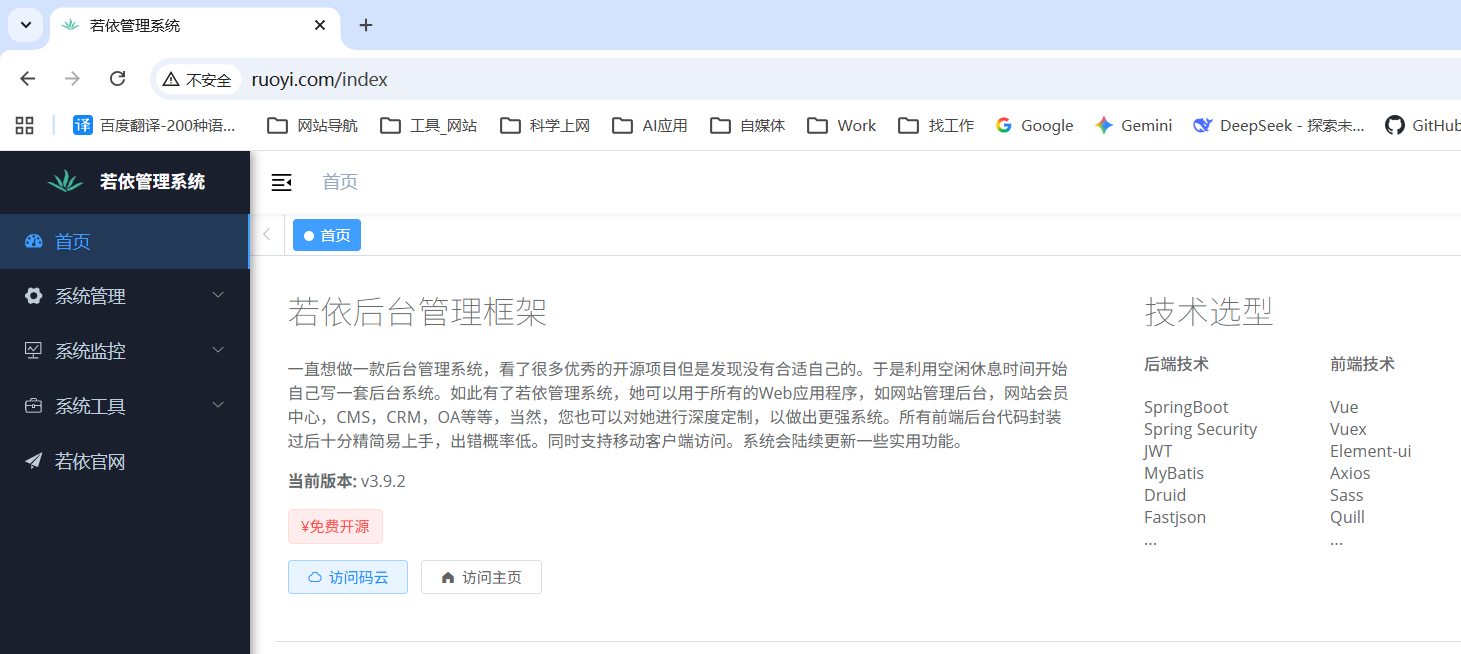
3.登录测试
10.0.0.7 www.ruoyi.com
admin admin123
正文完