2026年4月22日
知识点回顾
1.nginx日志
'$remote_addr - $remote_user [$time_local] "$request" '
'$status $body_bytes_sent "$http_referer" '
'"$http_user_agent" "$http_x_forwarded_for"'

访问IP地址
访问用户
本地时间
请求参数 请求方法 请求协议版本
响应状态

记录来源
记录客户端信息
负载均衡记录真实IP

2.Nginx模块
1)目录索引
2)认证模块
3)访问限制
4)监控状态模块
5)location匹配规则
= 1 精确匹配
^~ 2 开头
~ 3 区分大小写
~* 4    不区分大小写
/ 5 通用匹配

3.LNMP架构
L:Linux
N:Nginx
M: mysql
P: php
LNMT:tomcat
LNMP:python
部署安装Nginx
Nginx官网yum仓库安装
部署安装php
安装15个服务
配置本机IP
部署安装MySQL
yum -y install mariadb

创建密码
mysqladmin
登录
mysql -uroot -p''

4.打通LNMP架构
1.nginx链接php
2.php业务引入数据库
tcp:ip+端口3306 用户名+密码
01.部署wordpress博客
1.配置Nginx的server
2.上传博客代码到站点目录
3.hosts解析
4.页面安装
1.配置Nginx的server
[root@web01 conf.d]# cat wp.conf
server {
    listen 80;
    server_name www.wp.com;
    location / {
        root /code/wp;
        index index.php index.html;
    }

    location ~ \.php$ {
        root /code/wp;
        fastcgi_pass 127.0.0.1:9000;
        fastcgi_param SCRIPT_FILENAME $document_root$fastcgi_script_name;
        include fastcgi_params;
    }
}
[root@web01 conf.d]# nginx -t
nginx: the configuration file /etc/nginx/nginx.conf syntax is ok
nginx: configuration file /etc/nginx/nginx.conf test is successful
[root@web01 conf.d]# systemctl restart nginx
2.上传博客代码到站点目录
1.创建站点目录
[root@web01 conf.d]# mkdir /code/wp
[root@web01 conf.d]# cd /code/wp

2.下载博客代码
[root@web01 wp]# wget https://cn.wordpress.org/wordpress-6.2.9-zh_CN.tar.gz.

3.解压到/code/wp/
[root@web01 wp]# tar xf wordpress-6.2.9-zh_CN.tar.gz
[root@web01 wp]# mv wordpress/* .
3.hosts解析
10.0.0.7 www.wp.com
4.页面安装
第一步:访问页面开始安装
访问 www.wp.com
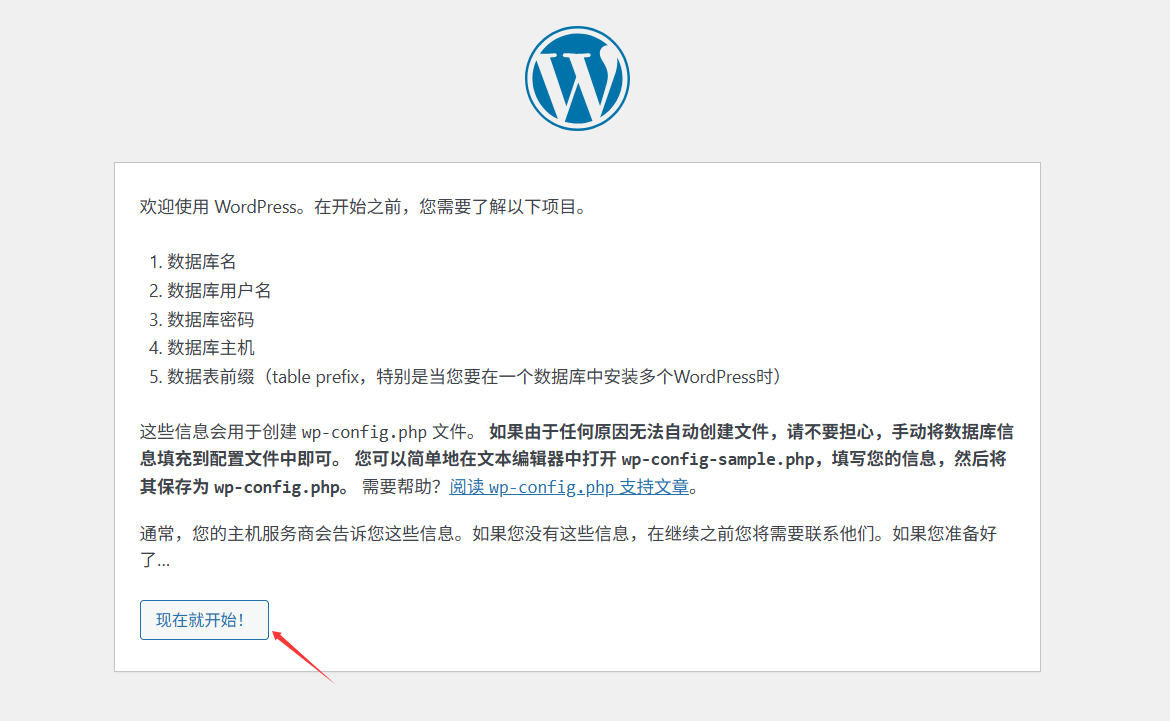
第二步:创建数据库
1.创建
[root@web01 wp]# mysql -uroot -p'lzy123.com' -e "create database wp"
2.查询
[root@web01 wp]# mysql -uroot -p'lzy123.com' -e "show databases"
+--------------------+
| Database           |
+--------------------+
| information_schema |
| mysql              |
| performance_schema |
| wp                 |
+--------------------+
第三步:页面填写数据库信息
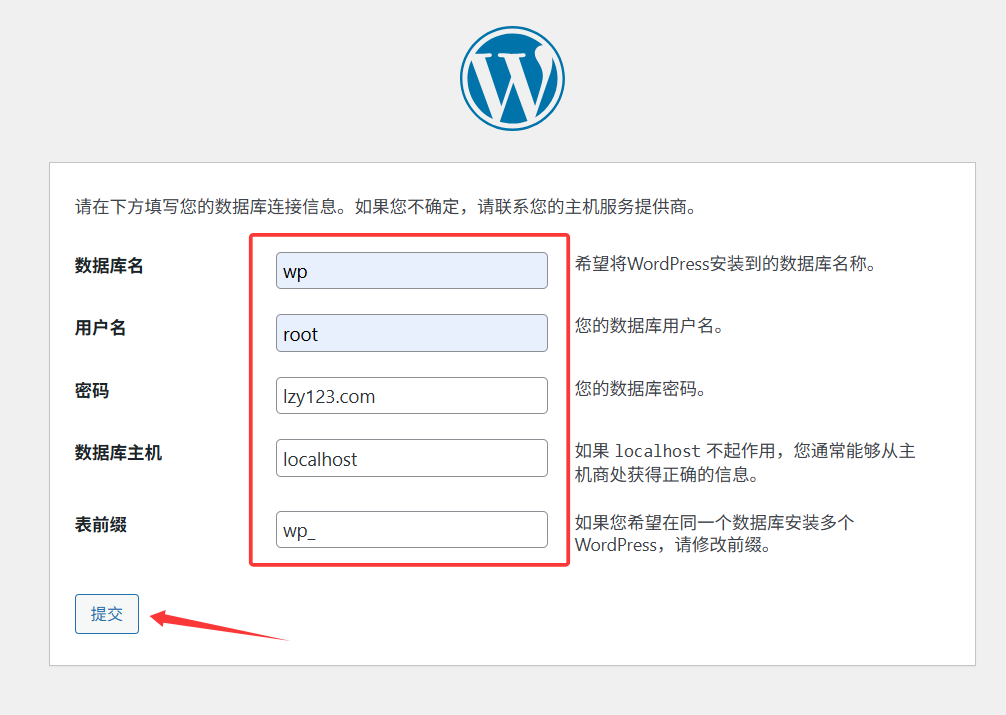
第四步:权限问题
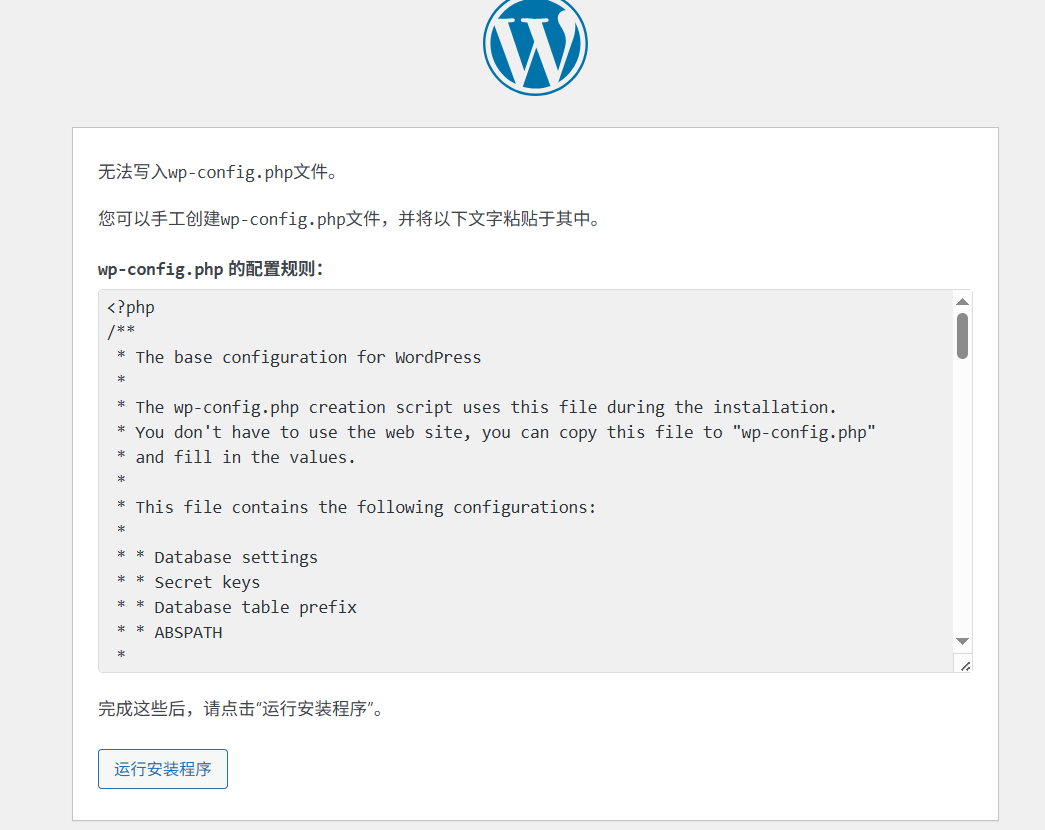
修改权限后刷新页面
[root@web01 code]# chown -R apache.apache wp
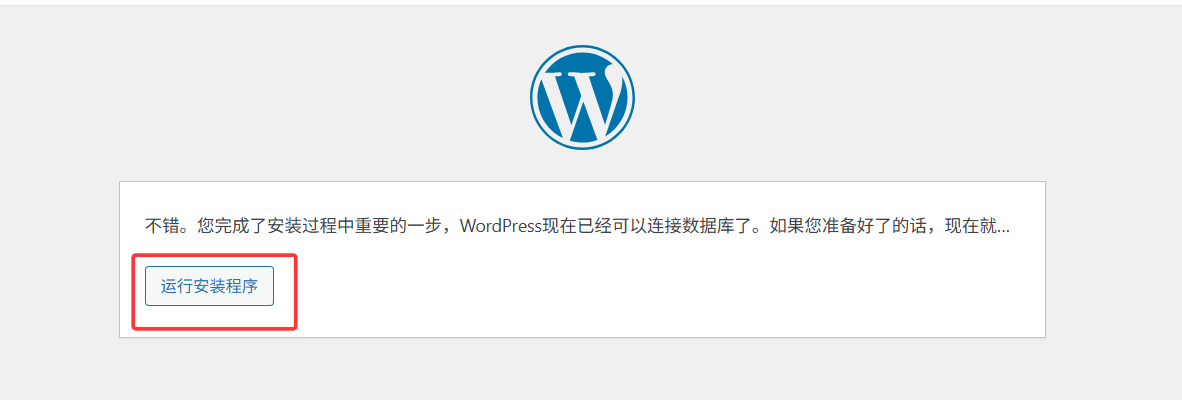
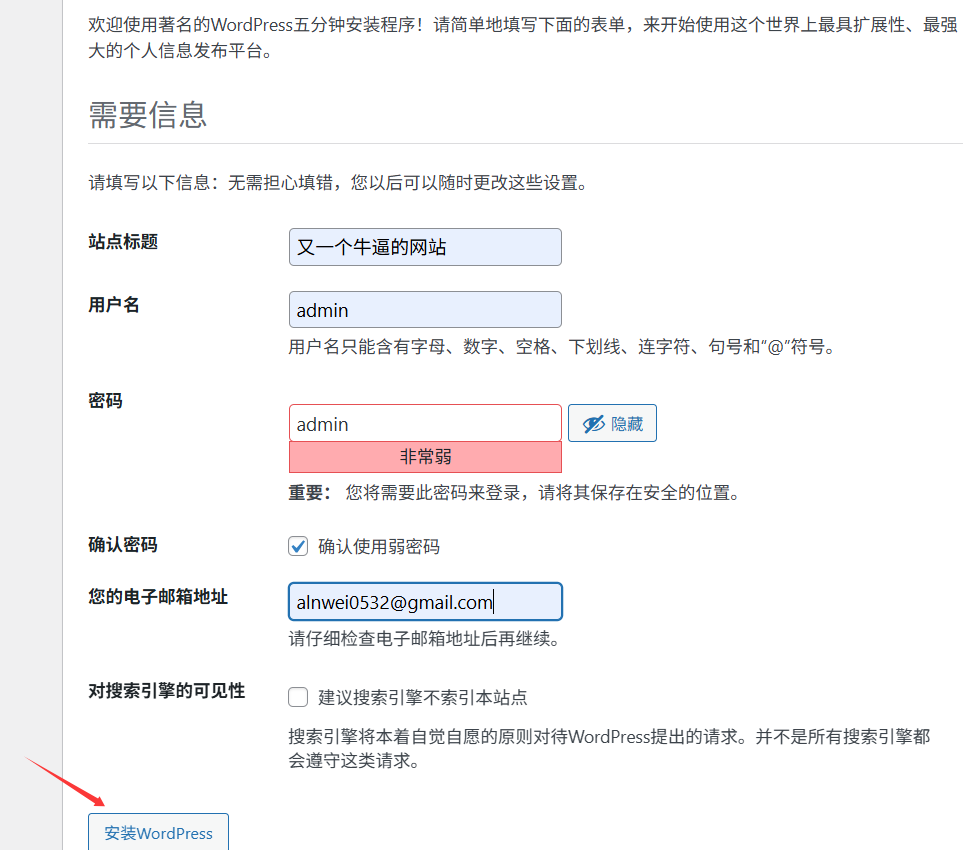
第五步:填些网站信息安装
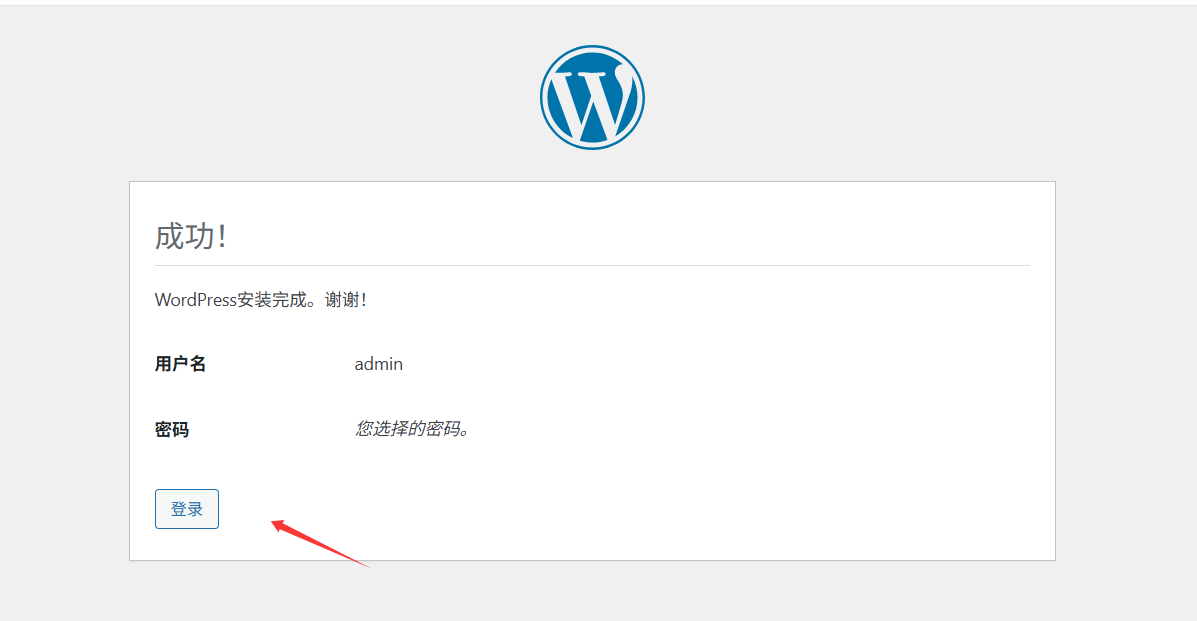
最后:安装成功登录系统
02.部署zh系统
1.配置Nginx server
2.上传代码
3.hosts解析
4.访问
1.配置Nginx server
[root@web01 conf.d]# cat zh.conf
server {
    listen 80;
    server_name www.zh.com;
    location / {
        root /code/zh;
        index index.php index.html;
    }

    location ~ \.php$ {
        root /code/zh;
        fastcgi_pass 127.0.0.1:9000;
        fastcgi_param SCRIPT_FILENAME $document_root$fastcgi_script_name;
        include fastcgi_params;
    }
}
[root@web01 conf.d]# nginx -t
nginx: the configuration file /etc/nginx/nginx.conf syntax is ok
nginx: configuration file /etc/nginx/nginx.conf test is successful
[root@web01 conf.d]# systemctl restart nginx
2.上传代码
[root@web01 conf.d]# mkdir /code/zh
[root@web01 conf.d]# cd /code/zh
[root@web01 zh]# ll WeCenter_V3.6.2.zip
-rw-r--r-- 1 root root 25238972  4月 22 10:43 WeCenter_V3.6.2.zip
[root@web01 zh]# unzip WeCenter_V3.6.2.zip
3.hosts解析
10.0.0.7 www.wp.com www.zh.com
4.页面访问www.zh.com
1.创建数据库
[root@web01 ~]# mysql -uroot -p'lzy123.com' -e "create database zh"
[root@web01 ~]# mysql -uroot -p'lzy123.com' -e "show databases"
+--------------------+
| Database           |
+--------------------+
| information_schema |
| mysql              |
| performance_schema |
| wp                 |
| zh                 |
+--------------------+
2.权限修改
[root@web01 code]# chown -R apache.apache zh
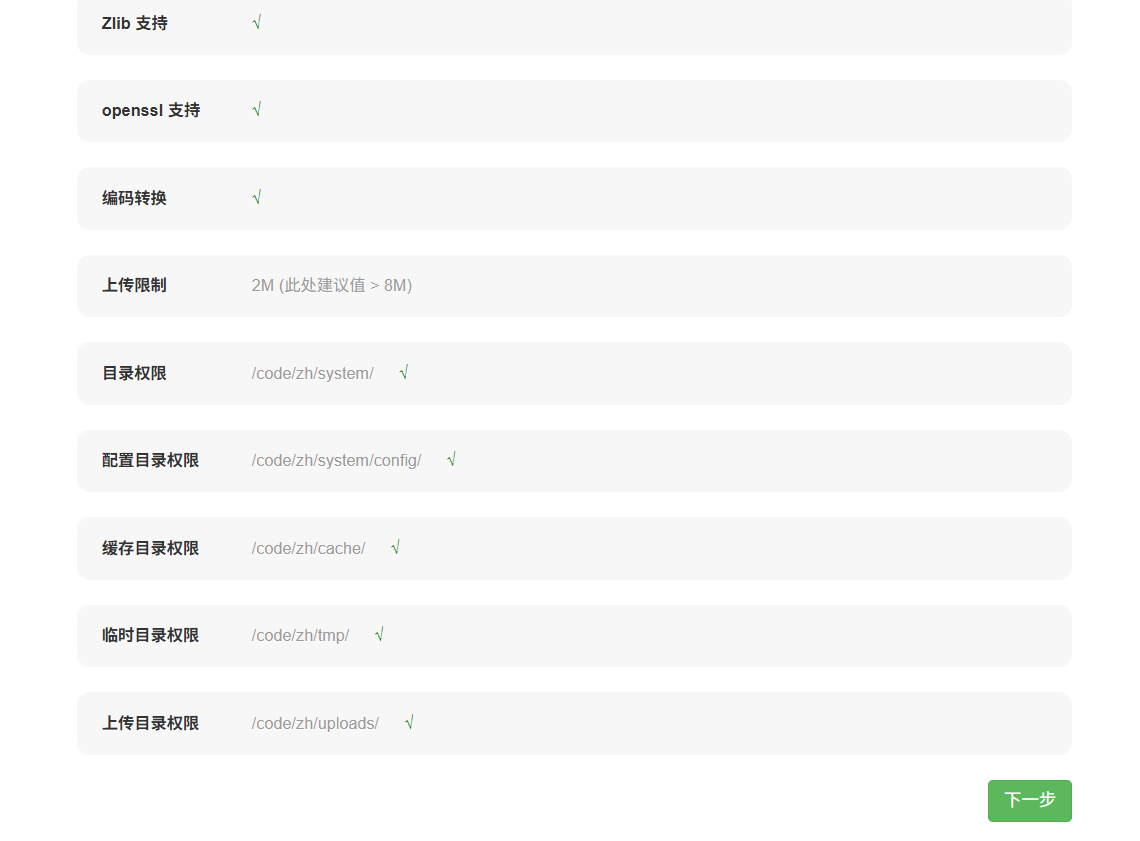
3.页面访问
4.作业问题
#wordpress上传图片的时候选择大于5M的,提示报错。
解决方法:
步骤1:修改/etc/php.ini
[root@web01 ~]# php --ini       #找到php.ini文件
Configuration File (php.ini) Path: /etc
Loaded Configuration File:         /etc/php.ini

[root@web01 ~]# cat -n /etc/php.ini|grep -E 'upload_max_filesize|post_max_size|memory_limit|max_execution_time'     #编辑下面4行
   383  max_execution_time = 300    ; 脚本最大执行时间(秒)
   404  memory_limit = 256M         ; PHP 内存限制
   672  post_max_size = 128M        ; POST 请求最大大小,必须 ≥ upload_max_filesize
   825  upload_max_filesize = 128M  ; 单次上传文件最大大小

[root@web01 ~]# systemctl restart php-fpm   #重启php

步骤2:Nginx http区块或server加上配置
[root@web01 ~]# vim /etc/nginx/nginx.conf
http {
    client_max_body_size 128M;
}
或
server {
    client_max_body_size 128M;
}

systemctl restart nginx     #重启Nginx
03.数据库迁移
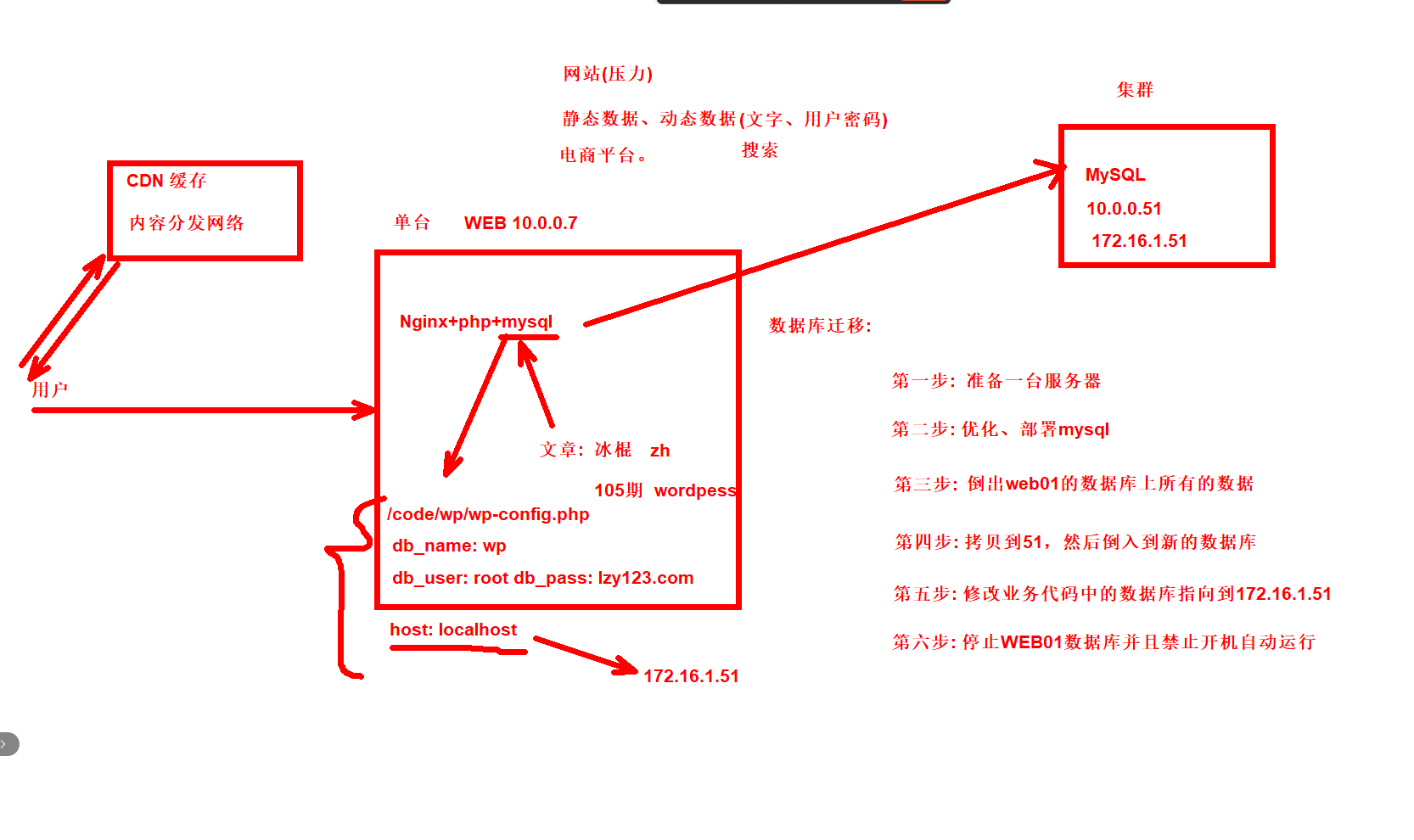
1.克隆一台数据库服务器命名为DB01
2.安装数据库
3.web01导出数据库中所有的数据
4.将all.sql拷贝到51,然后导入到新库
5.修改业务指向新的数据库
1.克隆一台数据库服务器命名为DB01
1.克隆模板机
2.改主机名  DB01
3.改IP 10.0.0.51 172.16.1.51
4.做快照
2.安装数据库
[root@DB01 ~]# yum -y install mariadb-server
[root@DB01 ~]# systemctl start mariadb
[root@DB01 ~]# systemctl enable mariadb
3.web01导出数据库中所有数据
[root@web01 ~]# mysqldump -uroot -plzy123.com -A > all.sql

#查看文件中是否有内容验证是否导出成功
[root@web01 ~]# vim all.sql
4.将all.sql拷贝到51,然后导入到新库
1.拷贝到51
[root@web01 ~]# scp all.sql 10.0.0.51:/root/
[root@DB01 ~]# ll
总用量 3368
-rw-r--r-- 1 root root 3438861  4月 22 14:26 all.sql

2.导入新库
[root@DB01 ~]# mysql -uroot < all.sql
[root@DB01 ~]# systemctl restart mariadb
[root@DB01 ~]# mysql -uroot -p'lzy123.com' -e "show databases"
+--------------------+
| Database           |
+--------------------+
| information_schema |
| mysql              |
| performance_schema |
| wp                 |
| zh                 |
+--------------------+
5.修改业务指向新的数据库wp
第一步:过滤业务中包含数据信息的文件
[root@web01 ~]# grep -r 'lzy123.com' /code/wp
/code/wp/wp-config.php:define( 'DB_PASSWORD', 'lzy123.com' );
第二步:关闭web01的数据库服务
[root@web01 ~]# systemctl stop mariadb.service
[root@web01 ~]# systemctl disable mariadb.service
第三步:修改代码数据库用户名和IP地址为新库
注意:数据库默认远程连接数据不让使用root用户
需要在数据库中创建普通用户、用普通用户来远程连接数据库、可以用命令做测试访问
1.远程连接数据库的命令
[root@web01 wp]# mysql -h 172.16.1.51 -uroot -plzy123.com
ERROR 1130 (HY000): Host '172.16.1.7' is not allowed to connect to this MariaDB server

2.创建普通用户
[root@DB01 ~]# mysql -uroot -plzy123.com -e "grant all on  *.* to lzy@'%' identified by 'lzy123.com';"

3.修改代码数据库用户名和IP地址为新库
[root@web01 wp]# grep -E '172|lzy' wp-config.php
define( 'DB_USER', 'lzy' );
define( 'DB_PASSWORD', 'lzy123.com' );
define( 'DB_HOST', '172.16.1.51' );
第四步:再次访问网站
www.wp.com
http状态码:
200 OK
304 浏览器缓存
403 没有资源
404 没有资源
500 数据库无法连接
6.修改zh的业务代码数据库指向
1.查找数据库配置文件在哪
[root@web01 code]# grep -r 'lzy123.com' zh/
zh/system/config/database.php:  'password' => 'lzy123.com',

2.修改配置
[root@web01 zh]# cat /code/zh/system/config/database.php
<?php

$config['charset'] = 'utf8mb4';
$config['prefix'] = 'aws_';
$config['driver'] = 'MySQLi';
$config['master'] = array (
  'charset' => 'utf8mb4',
  'host' => '172.16.1.51',
  'username' => 'lzy',
  'password' => 'lzy123.com',
  'dbname' => 'zh',
  'port' => '3306',
);
$config['slave'] = false;
$config['port'] = '3306';

3.访问测试
www.zh.com
04.扩展一台web02和静态数据一致性
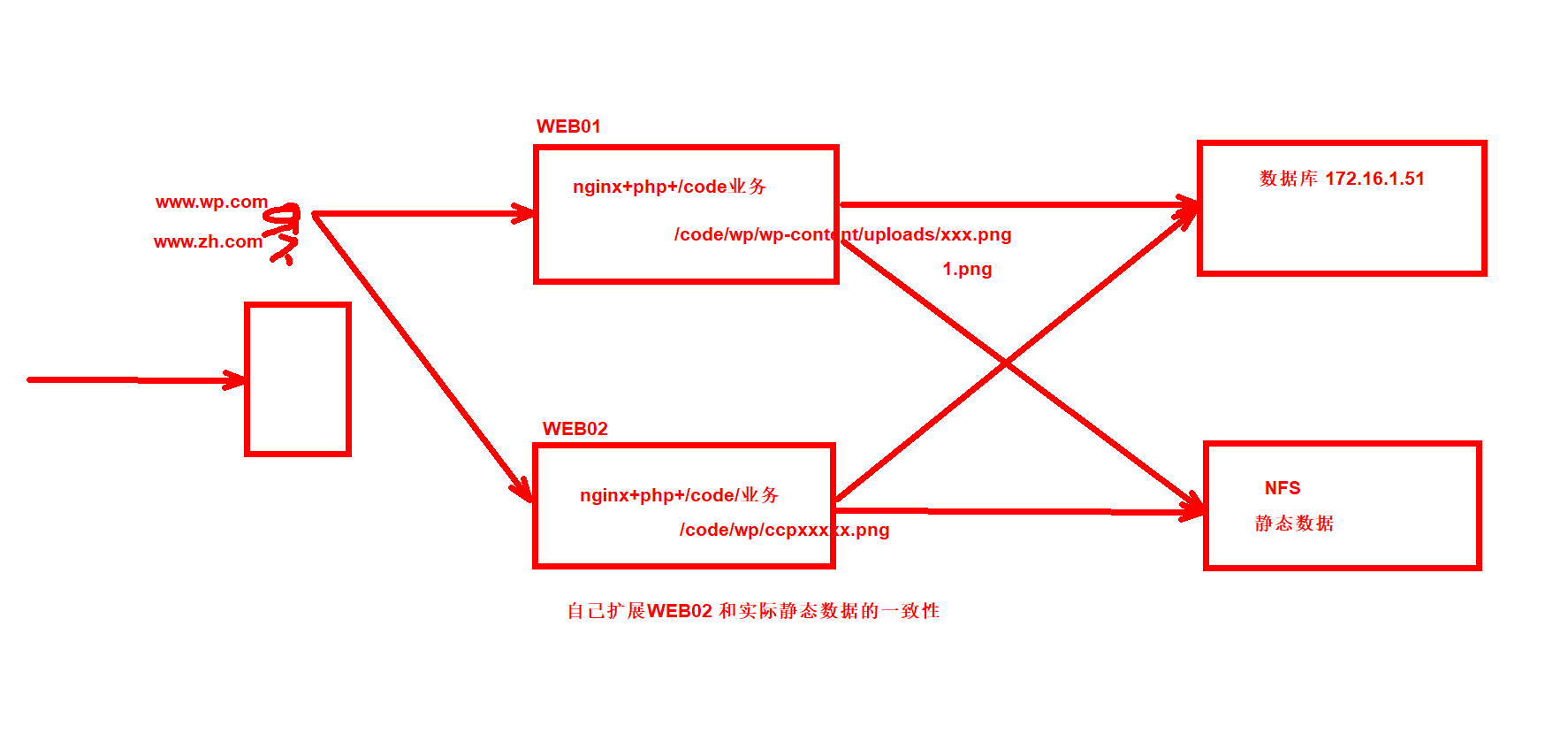
1.准备服务器
web01: nginx+php
web02: nginx+php
db01: mysql
nfs: nfs
2.安装需要的服务
3.配置
扩展:负载均衡
1.克隆一台服务器安装nginx
2.修改配置server
[root@oldboy conf.d]# vim loadbalance.conf
upstream web_servers {          #服务器池
    ip_hash;                    #会话 保留
    server 172.16.1.7:80;  # web01
    server 172.16.1.8:80;  # web02
}

server {
    listen 80;
    server_name www.wp.com www.zh.com;

    location / {
        proxy_pass http://web_servers;
        proxy_set_header Host $host;
        proxy_set_header X-Real-IP $remote_addr;
        proxy_set_header X-Forwarded-For $proxy_add_x_forwarded_for;
    }
}
正文完